The Cache You Cannot Reach
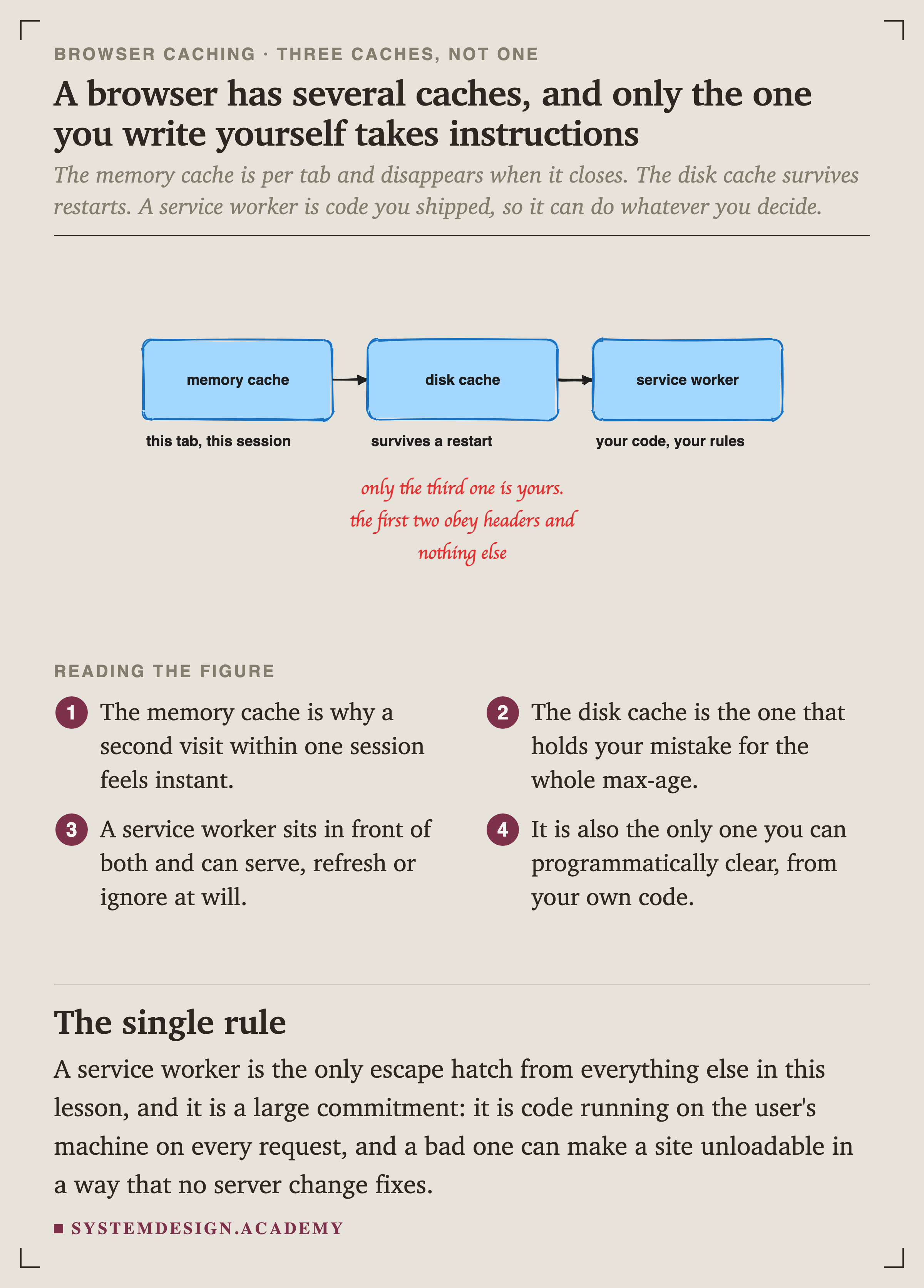
Every cache so far in this chapter has had an off switch. You can flush Redis, purge a , restart a process. The browser cache has none of that, because it is on somebody else's laptop.
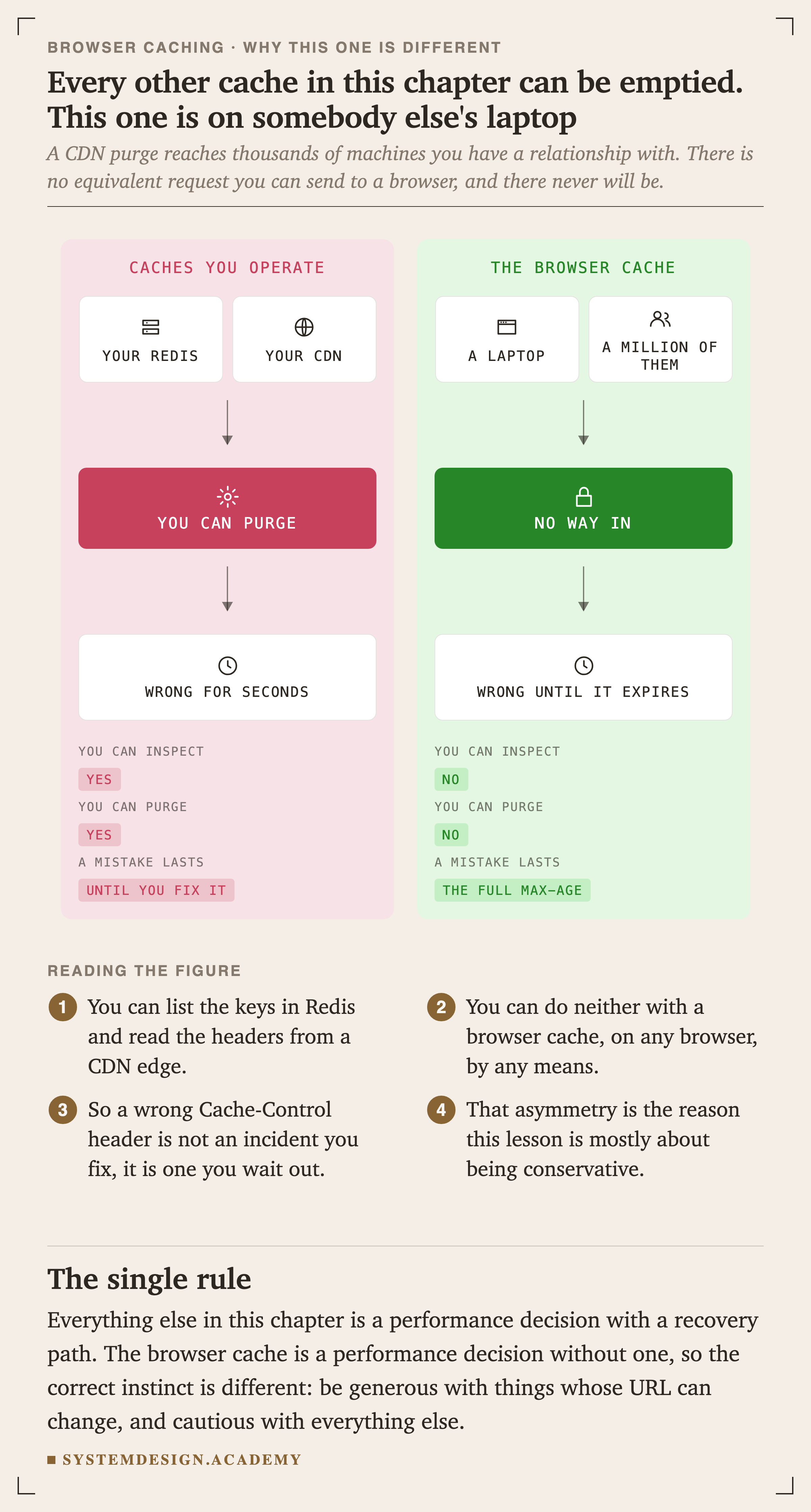
There is no request you can send to a browser to make it forget something, on any browser, by any means. So a wrong Cache-Control header is not an incident you fix. It is one you wait out.
That asymmetry shapes every recommendation that follows.
Three Outcomes, and the Best One Is Silent
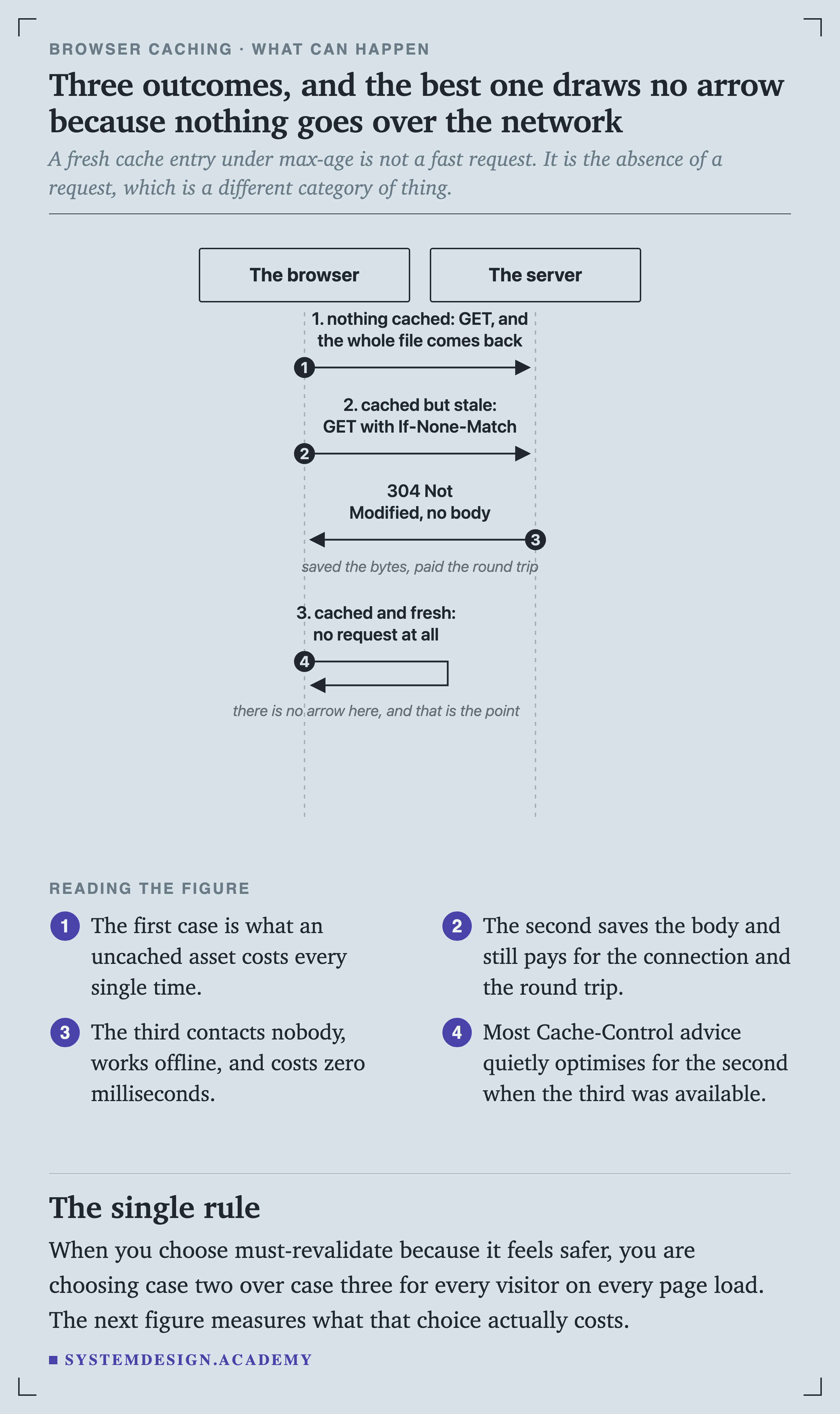
A fresh cache entry under max-age is not a fast request. It is the absence of a request, which is a different category of thing: zero milliseconds, zero bytes, and it works on a train with no signal.
Most advice quietly optimises for the middle case when the third one was available. It is worth measuring what that costs.
What a 304 Actually Saves
The script is at scripts/labs/browsercache/revalidate.py. It fetches real assets in full, then again with If-None-Match, and times both.
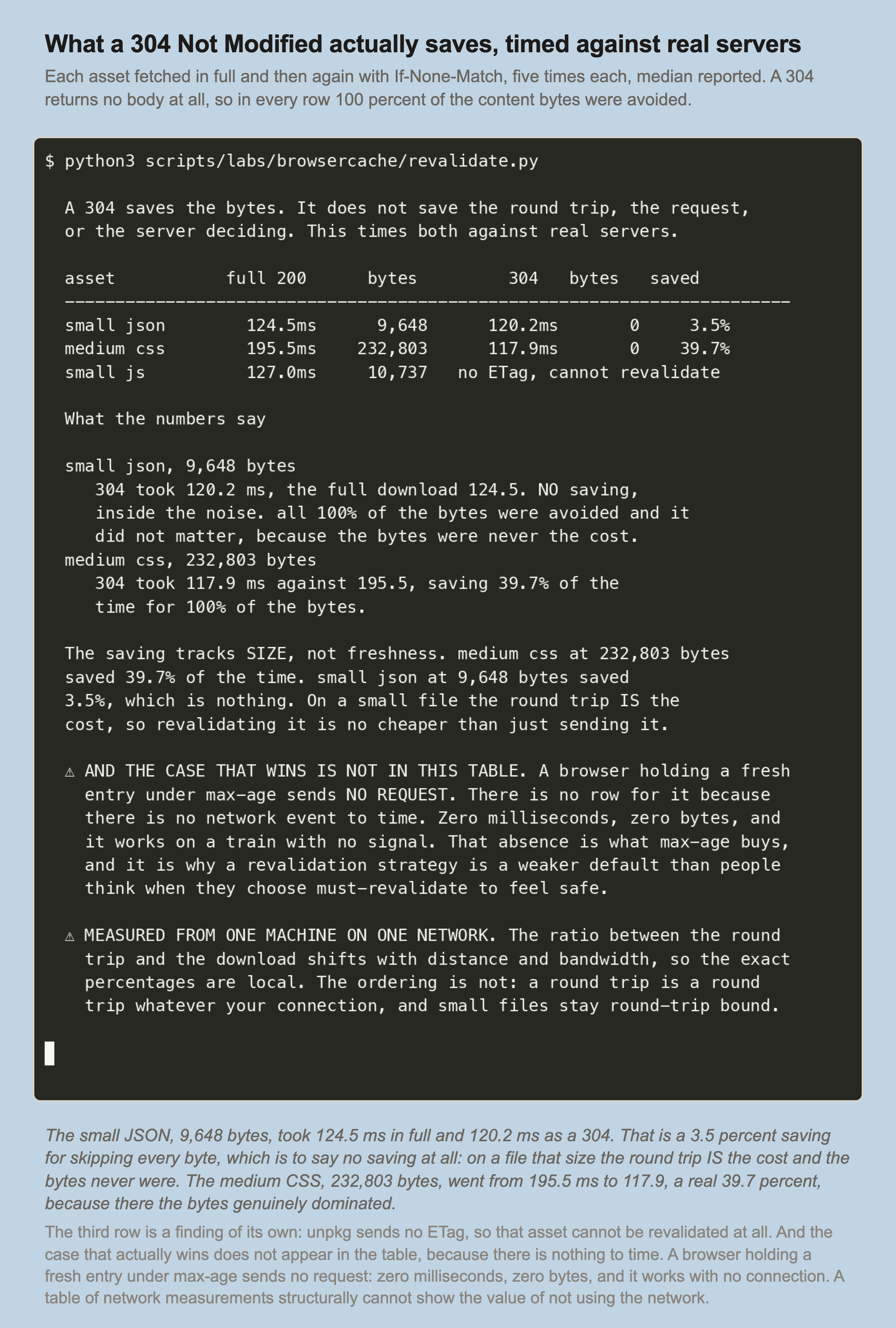
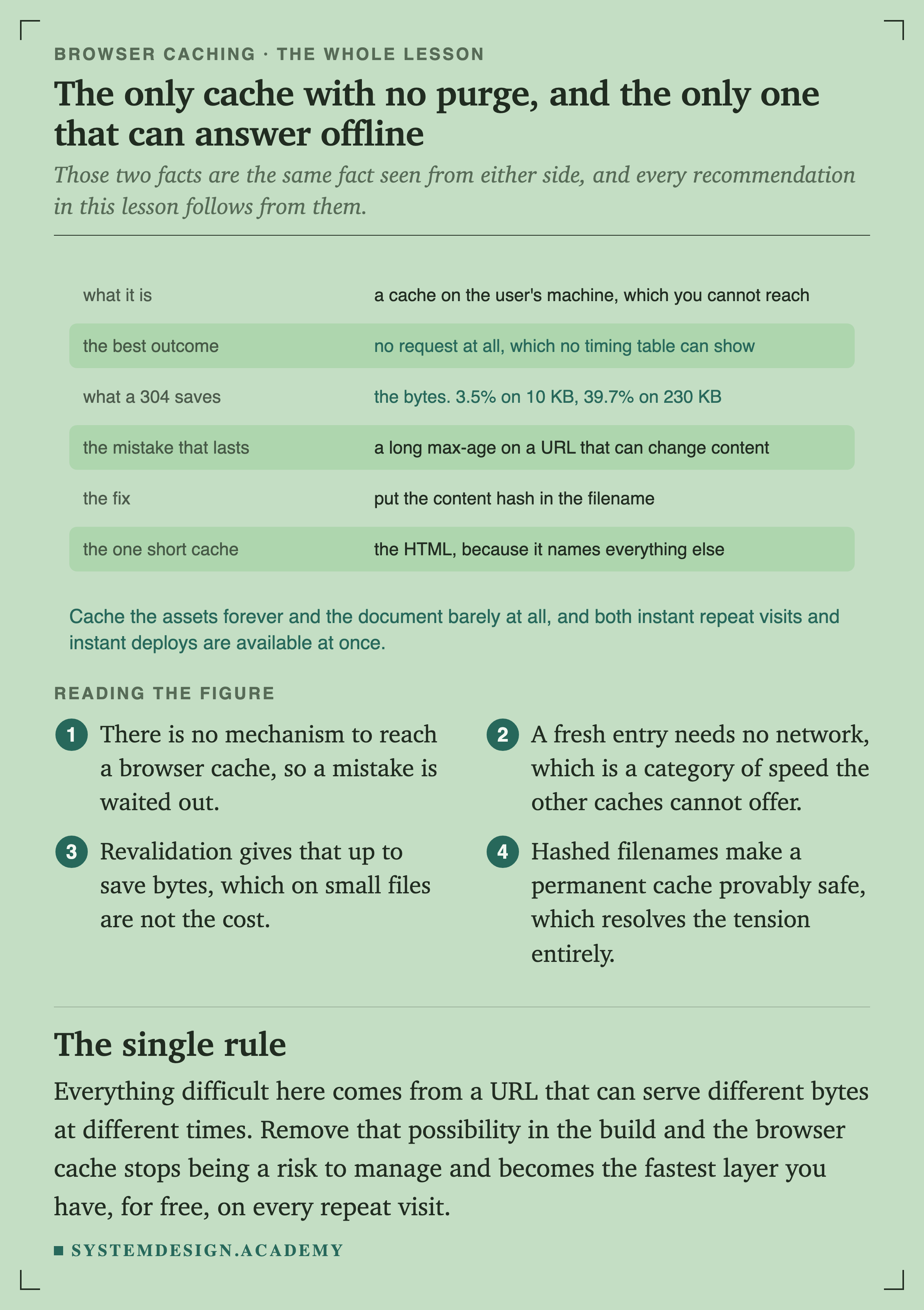
The 304 returns no body, so in both rows one hundred percent of the content bytes were avoided. On the small file that bought 3.5 percent of the time, which is nothing. On the large file it bought 39.7 percent, because there the bytes genuinely dominated.
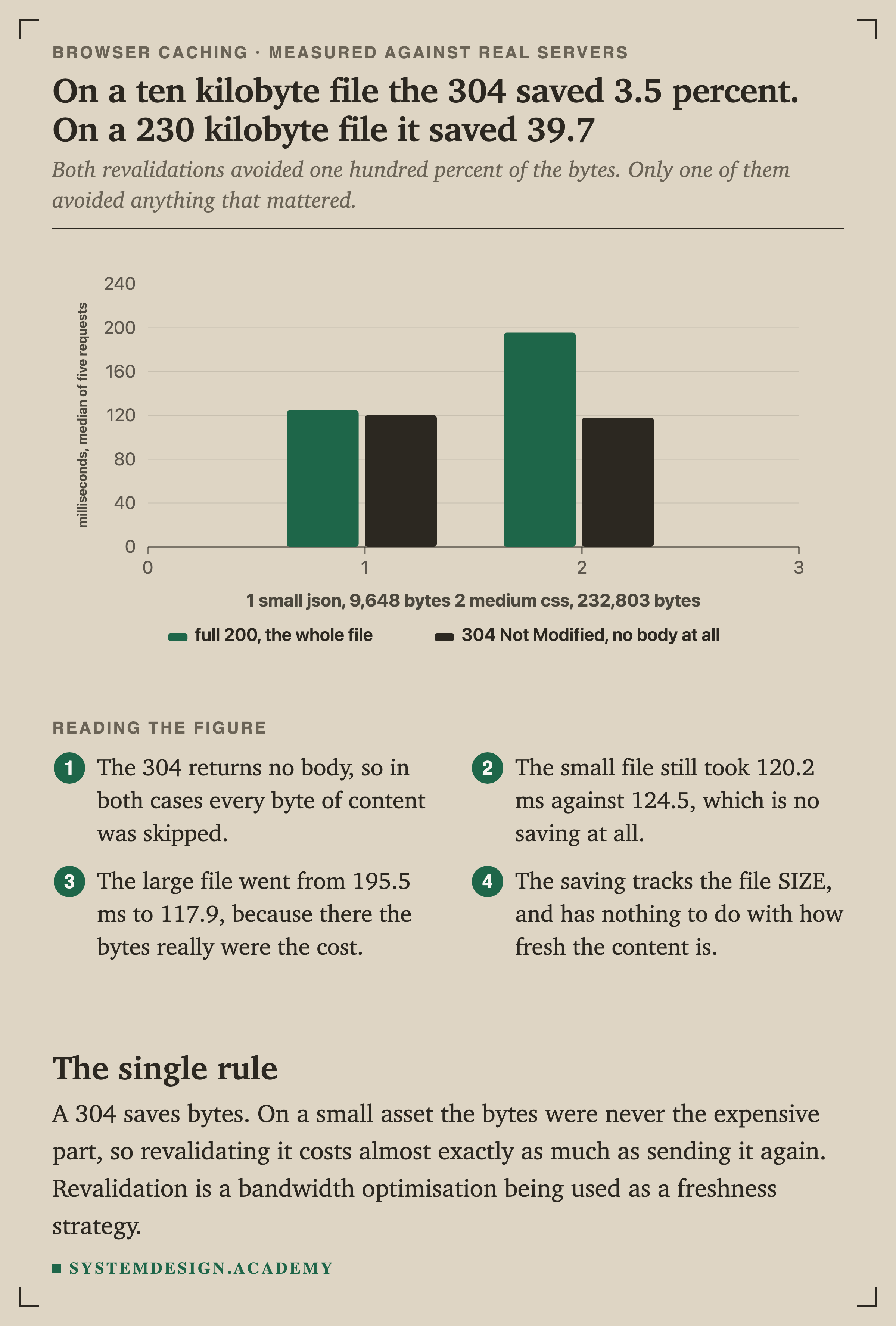
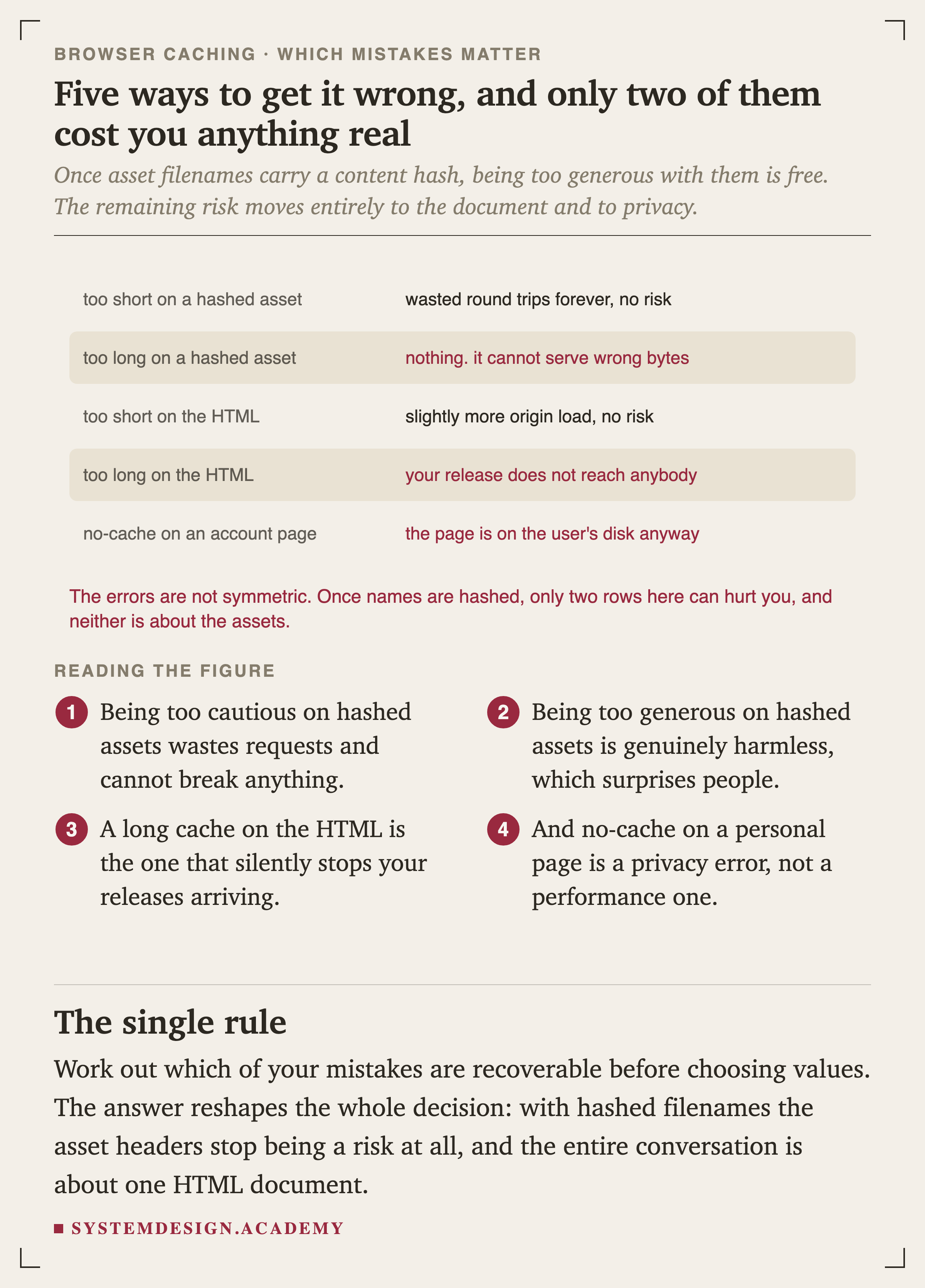
A 304 saves bytes. On a small asset the bytes were never the expensive part, so revalidating it costs almost exactly as much as sending it again. Revalidation is a optimisation being used as a freshness strategy.
The Vocabulary, and the Trap in It
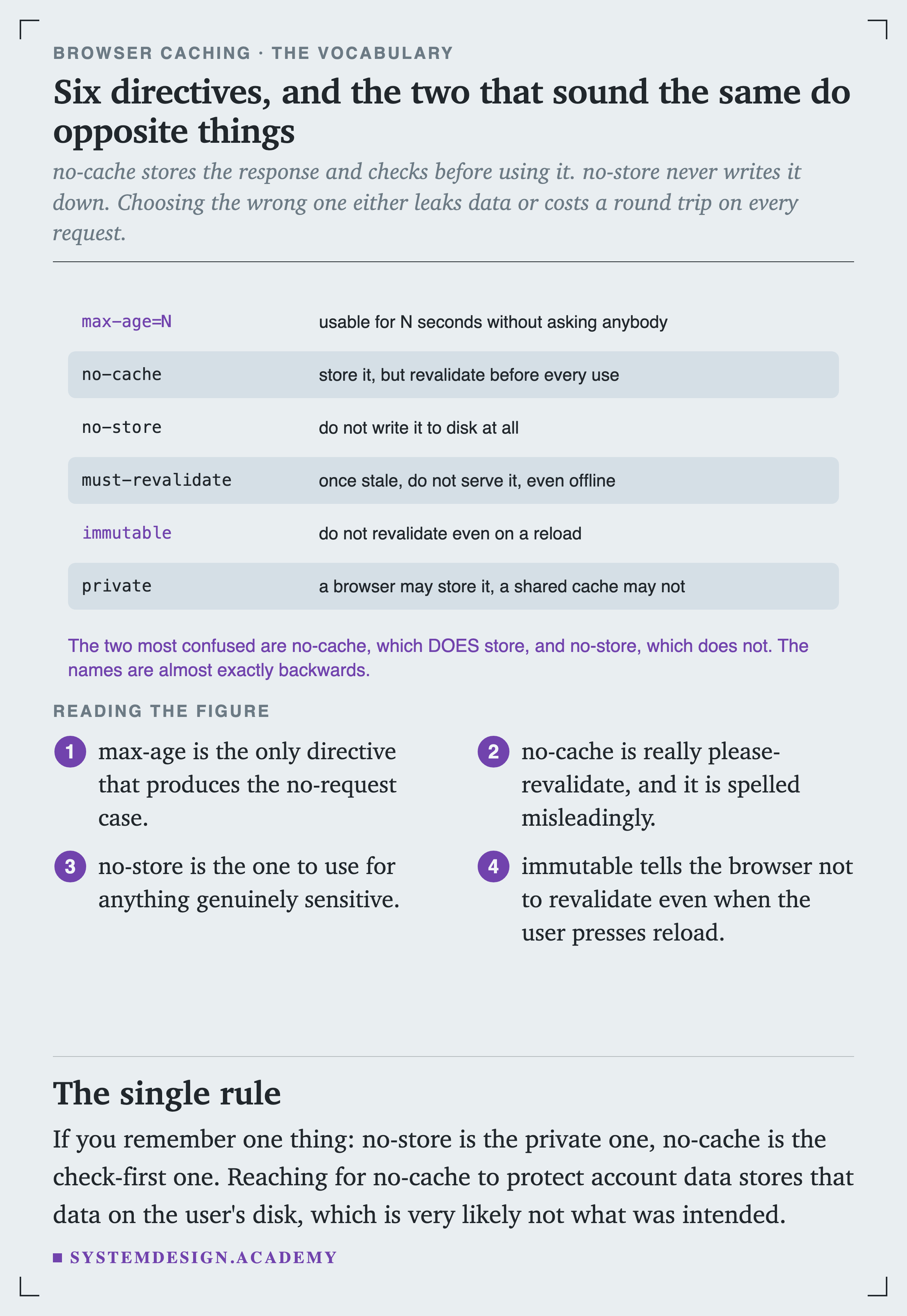
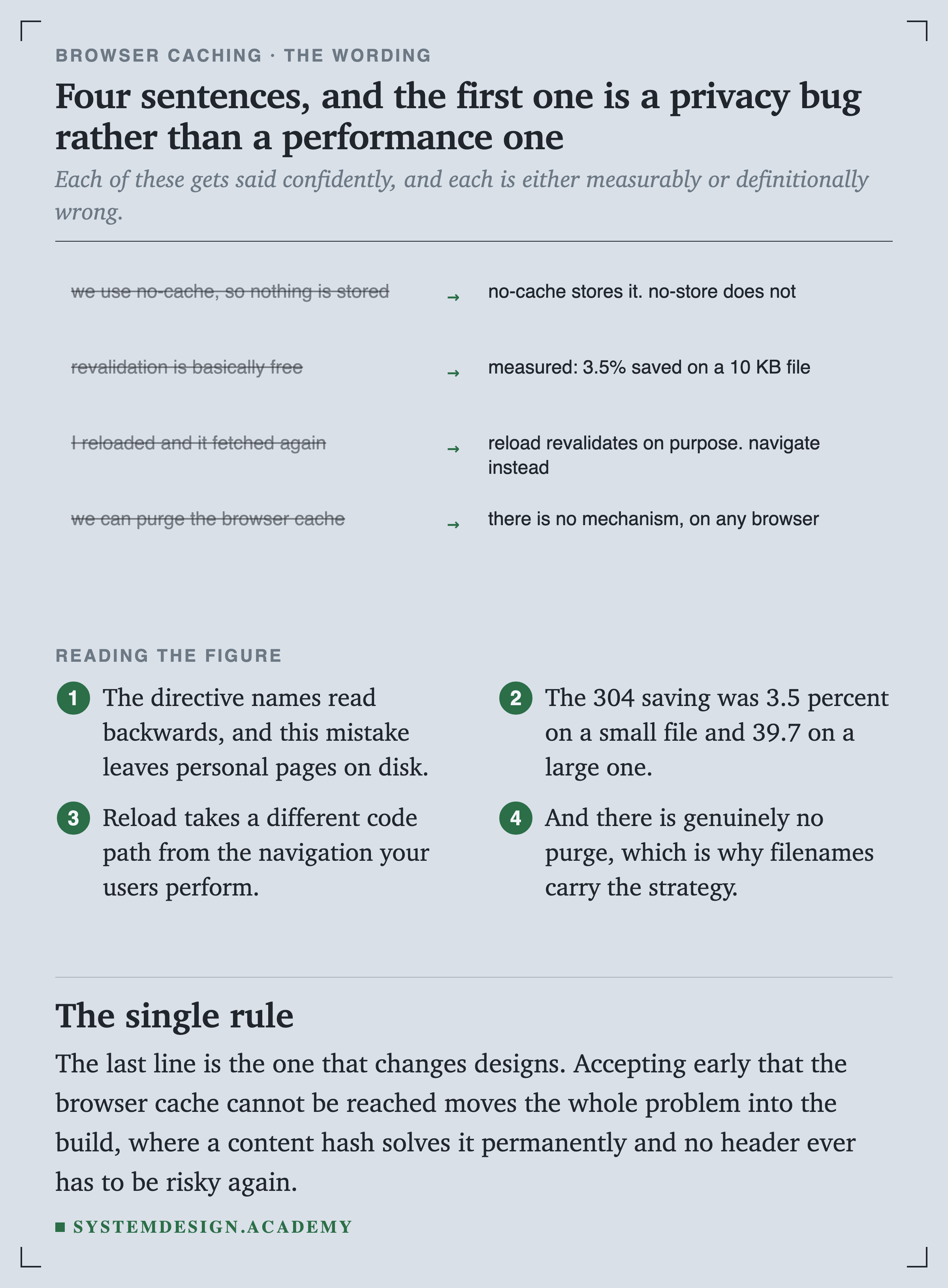
no-cache is really please-revalidate, and it is spelled misleadingly. no-store is the one that never writes the response down.
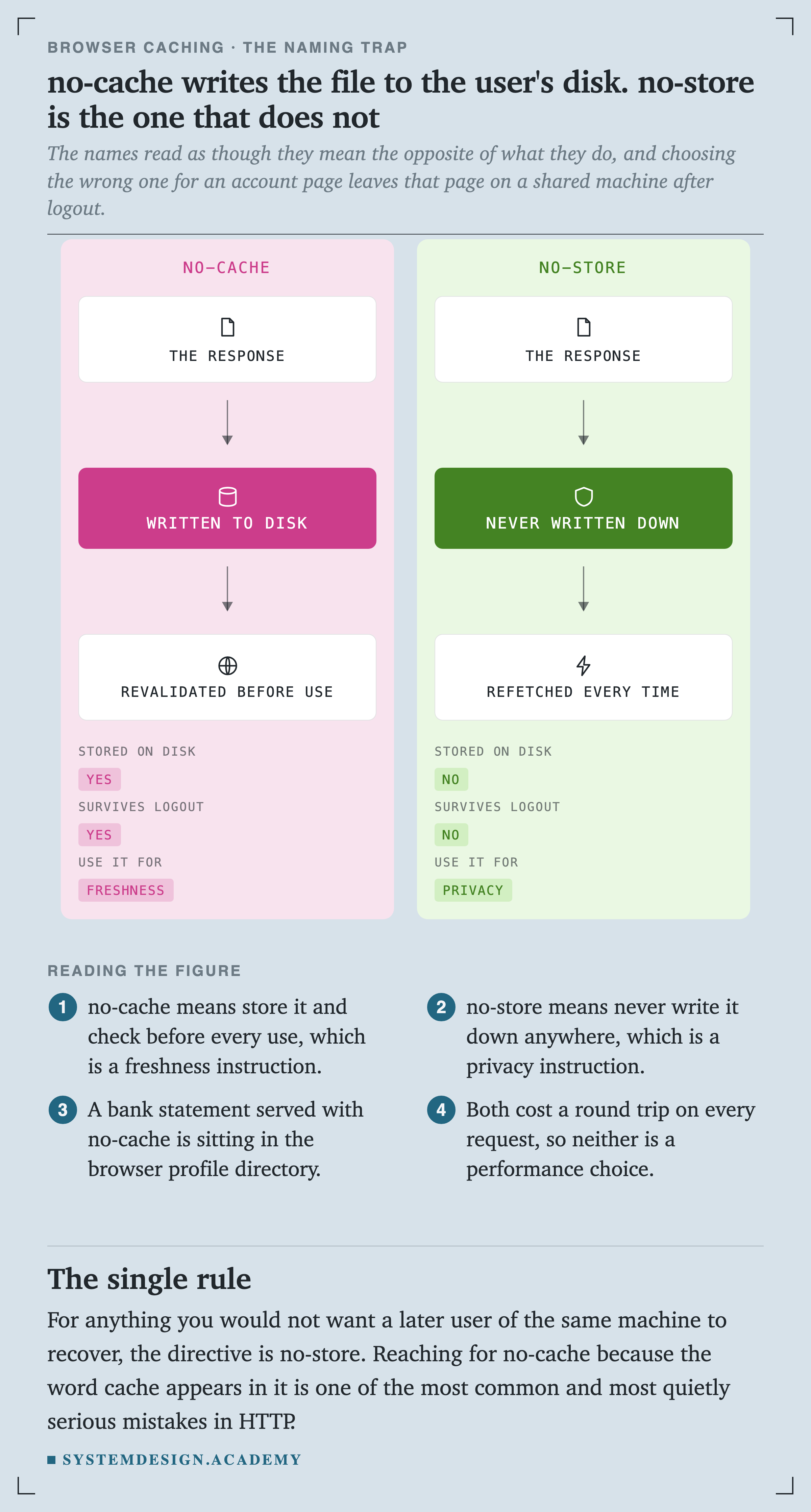
A bank statement served with no-cache is sitting in the browser profile directory. For anything you would not want a later user of the same machine to recover, the directive is .
The Mistake That Lasts a Year
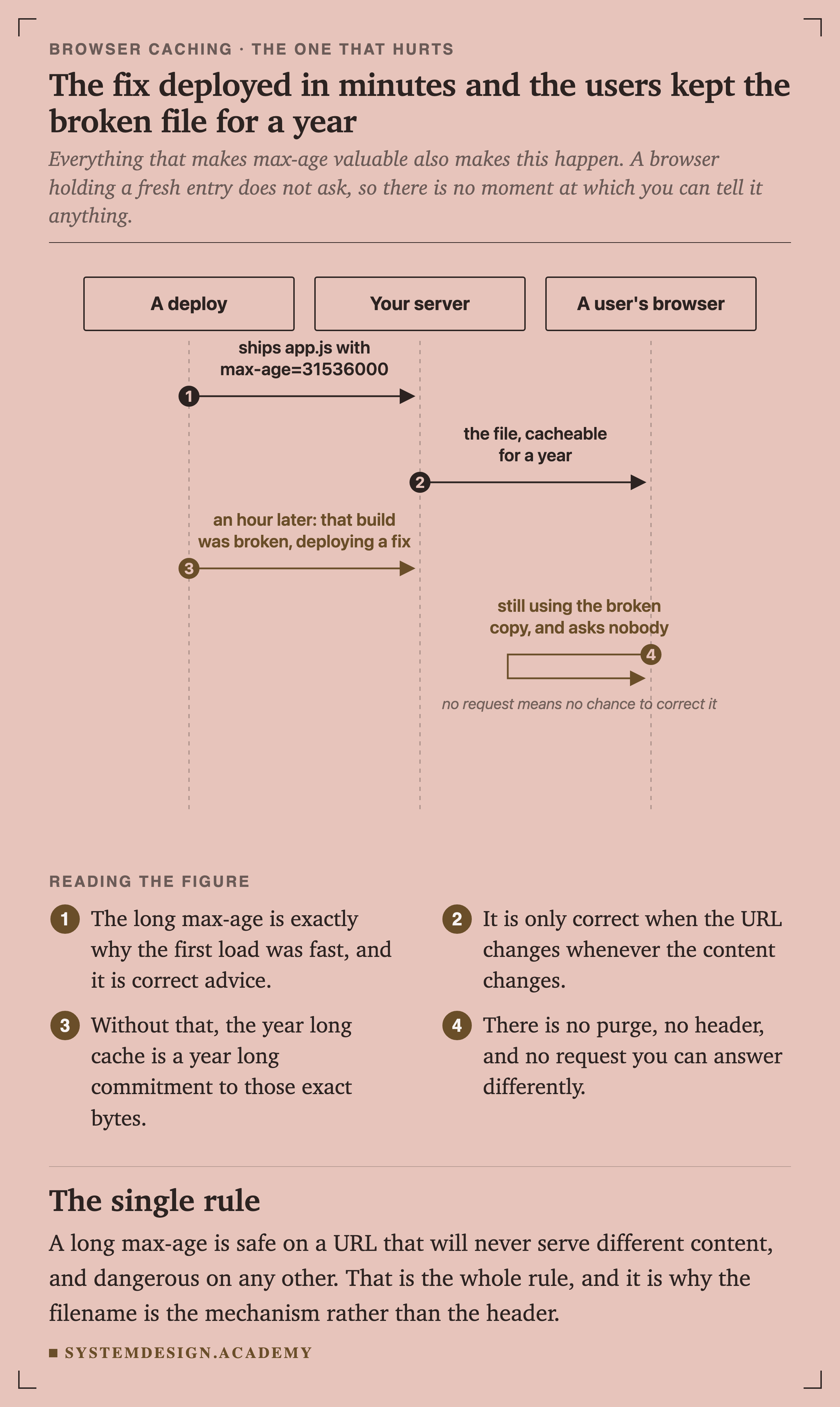
Everything that makes a long max-age valuable also makes this happen. A browser holding a fresh entry does not ask, so there is no moment at which you can tell it anything.
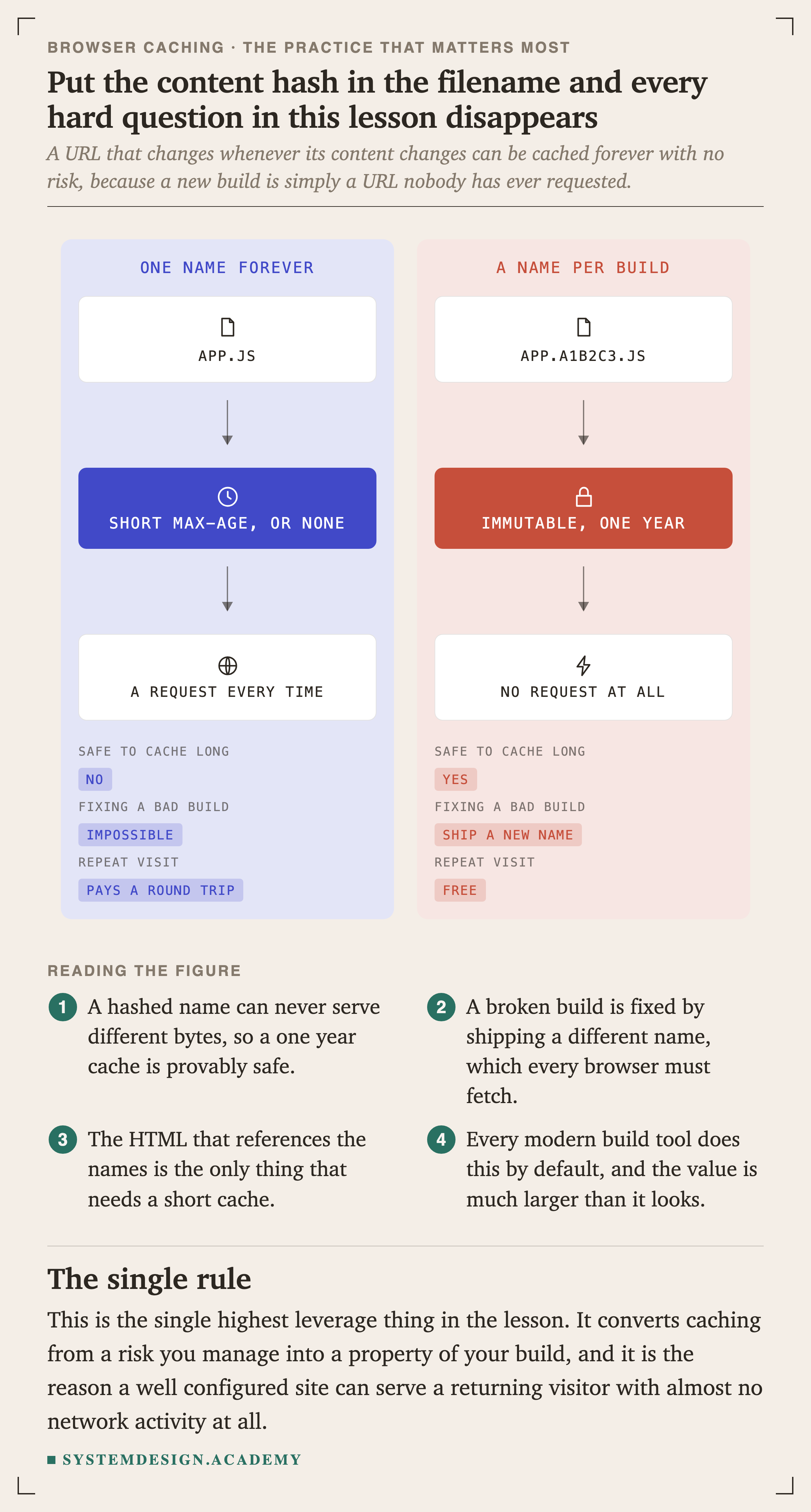
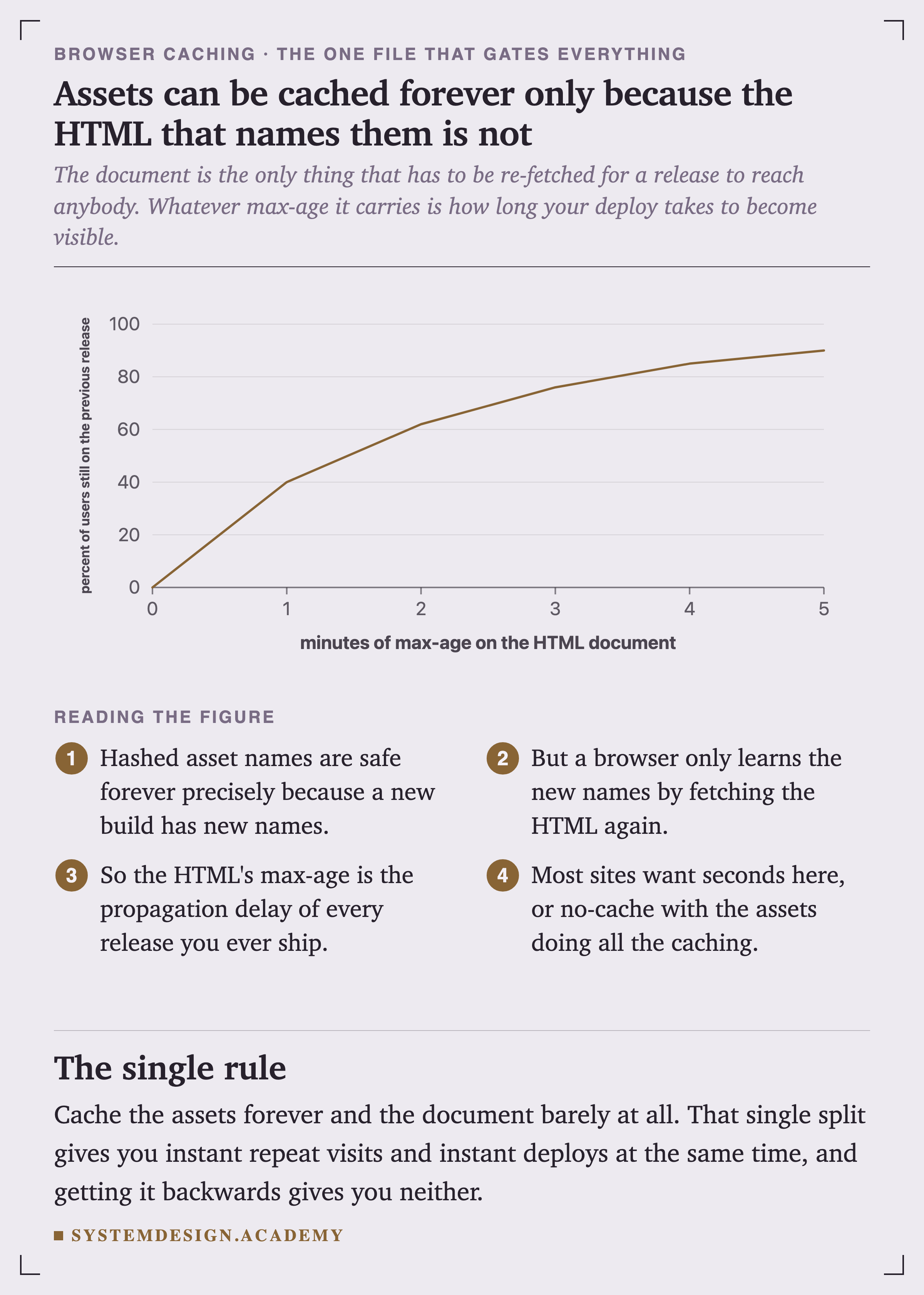
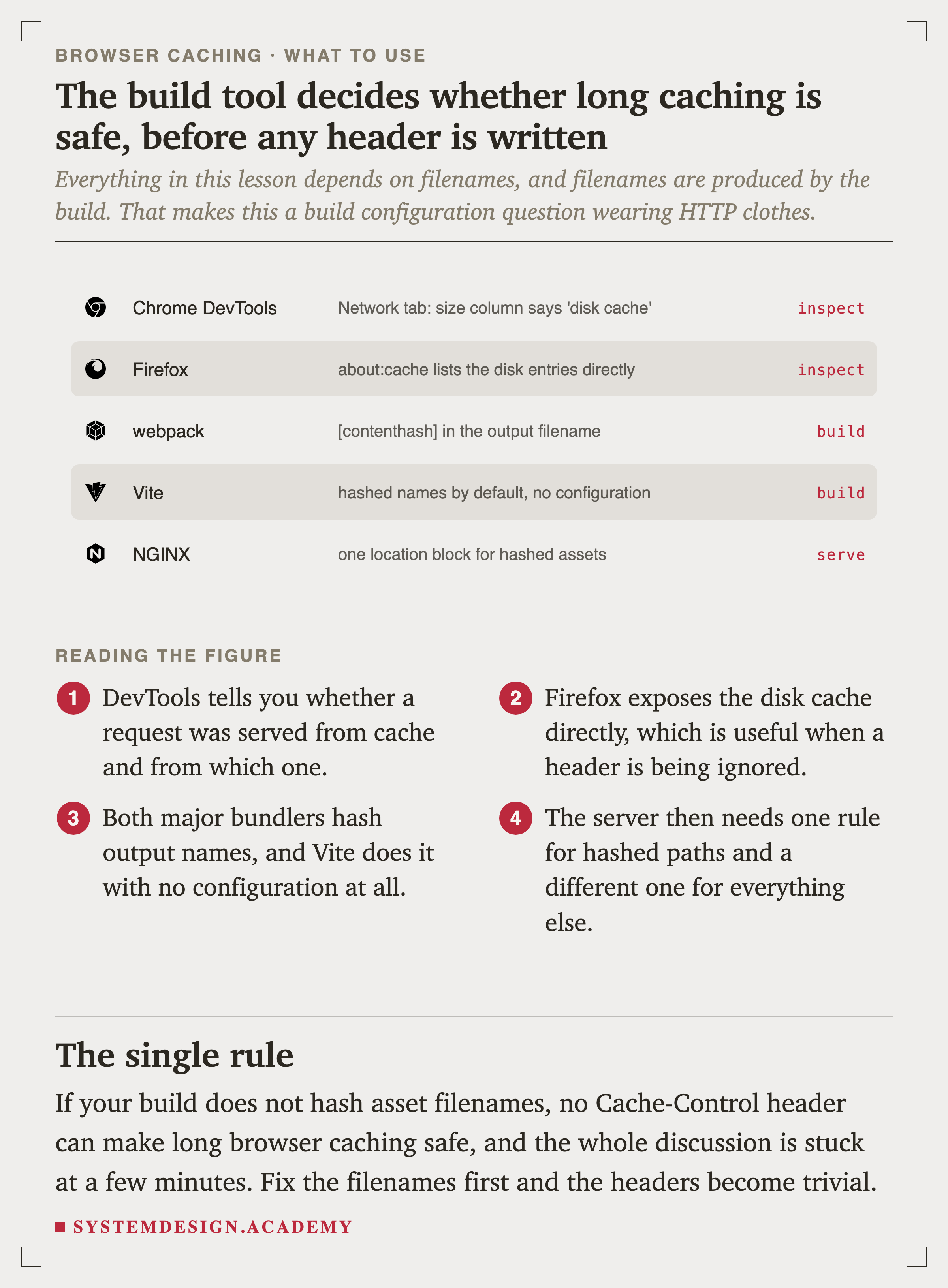
A URL that changes whenever its content changes can be cached forever with no risk, because a new build is simply a URL nobody has ever requested. A broken build is fixed by shipping a different name, which every browser must fetch.
What a Returning Visitor Pays
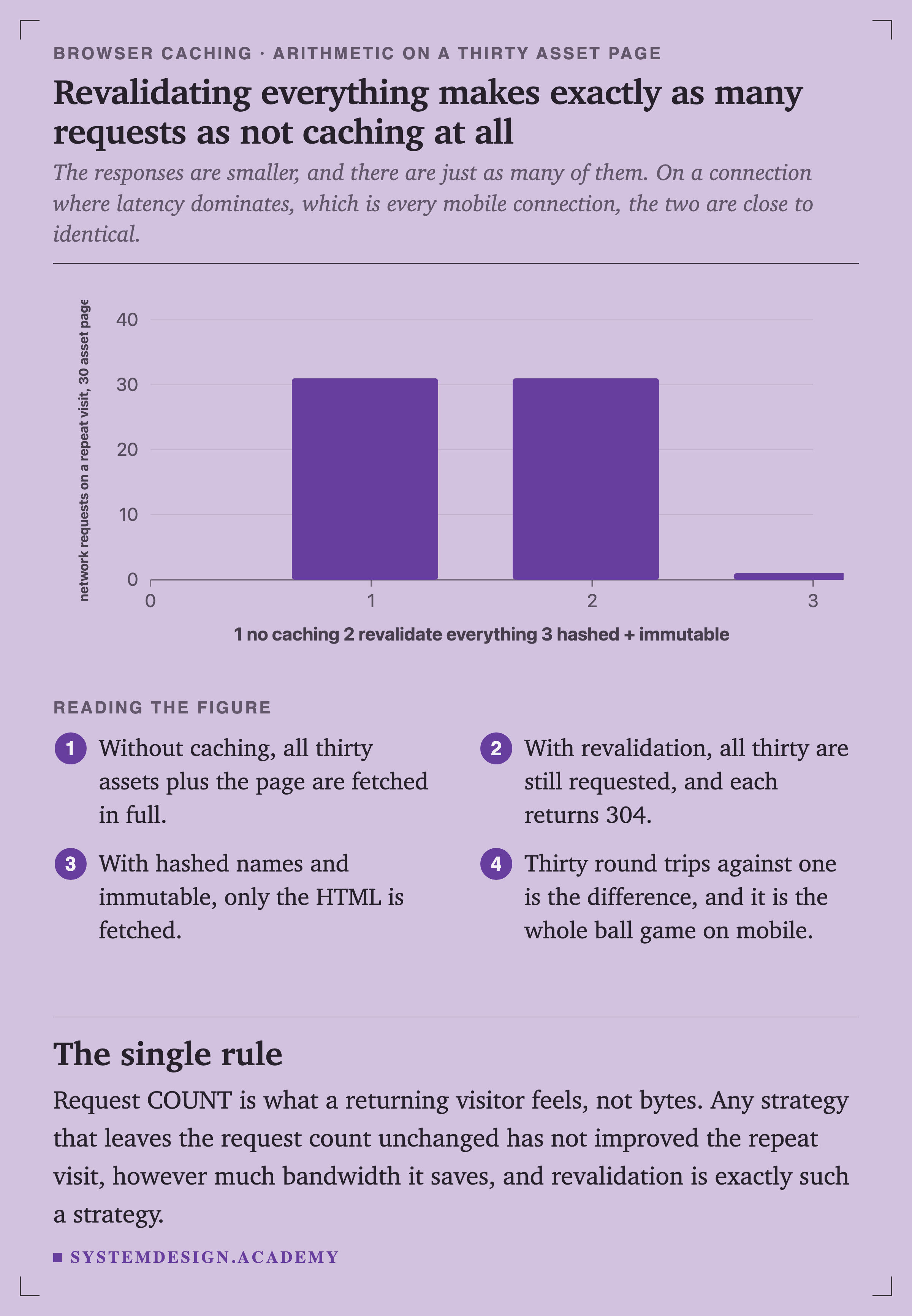
The responses are smaller and there are just as many of them. On a connection where dominates, which is every mobile connection, the two are close to identical. Request count is what a returning visitor feels, not bytes.
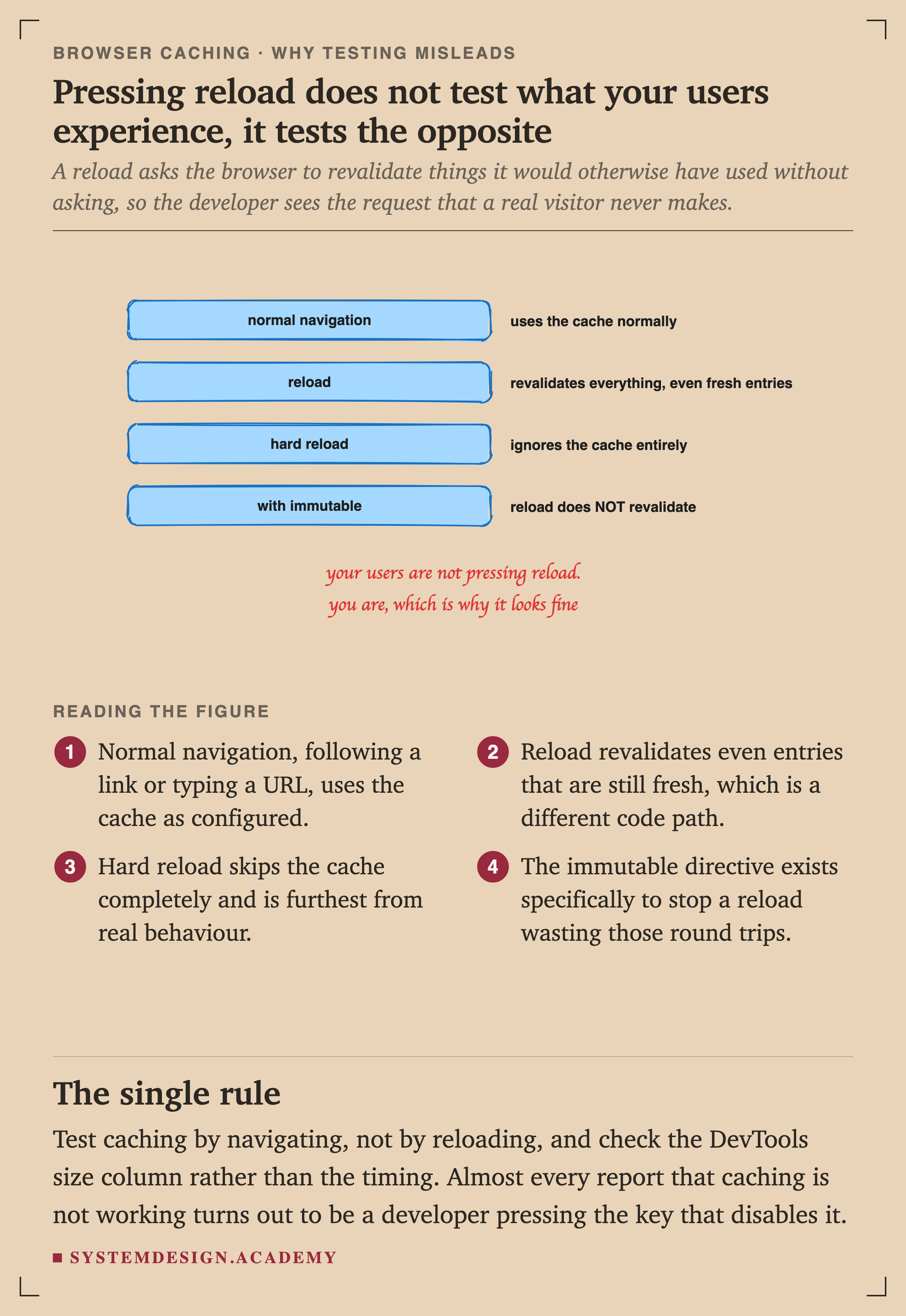
A reload asks the browser to revalidate things it would otherwise have used without asking. Almost every report that is not working turns out to be a developer pressing the key that disables it. Test by navigating and read the DevTools size column.
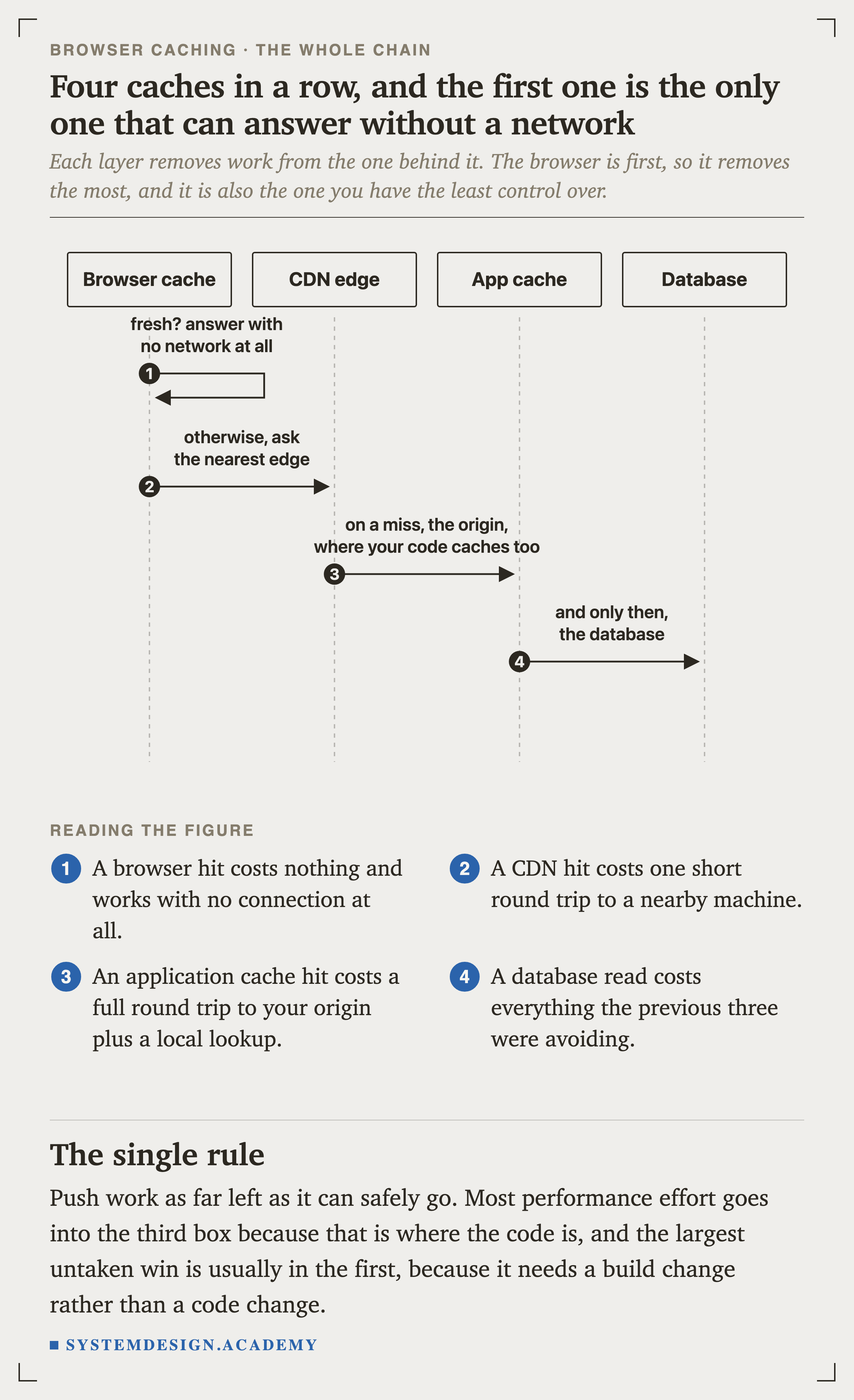
Choosing, Debugging and a Default
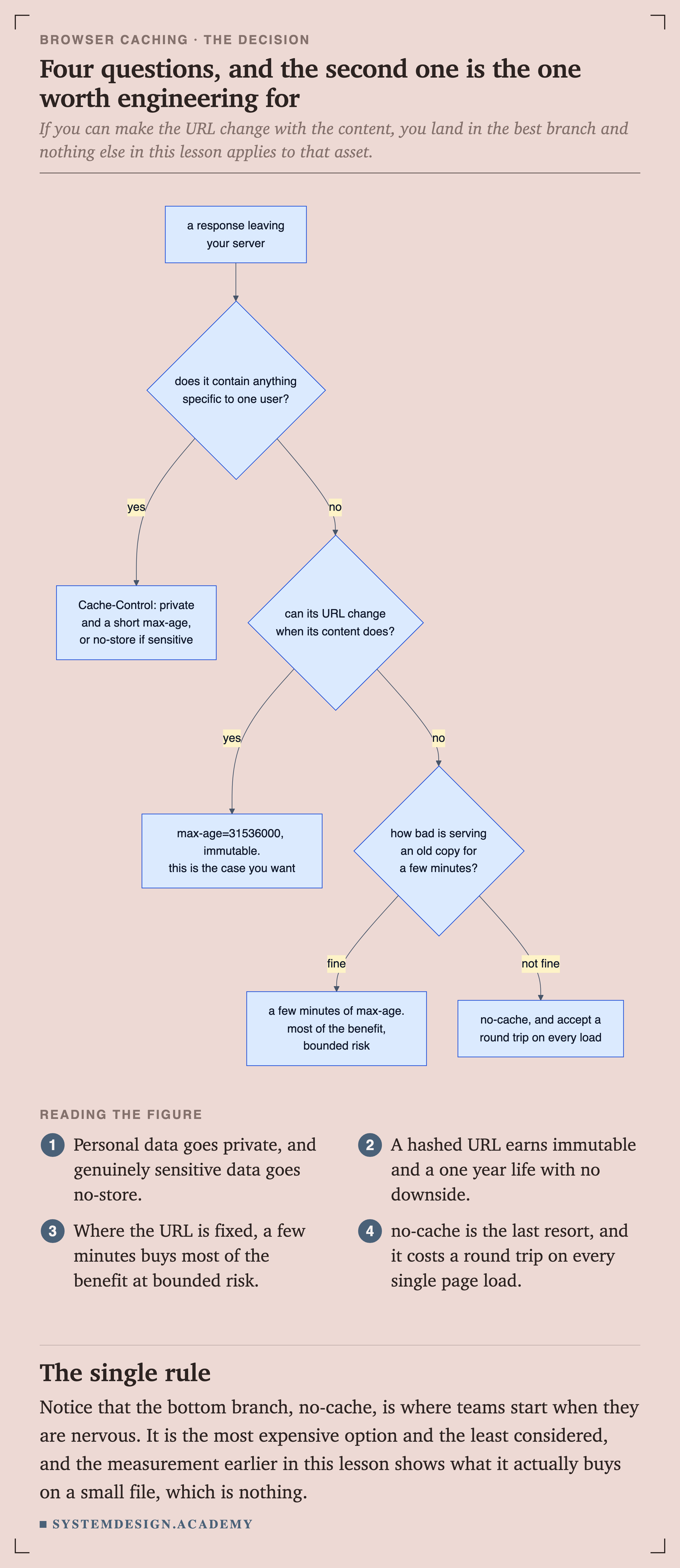
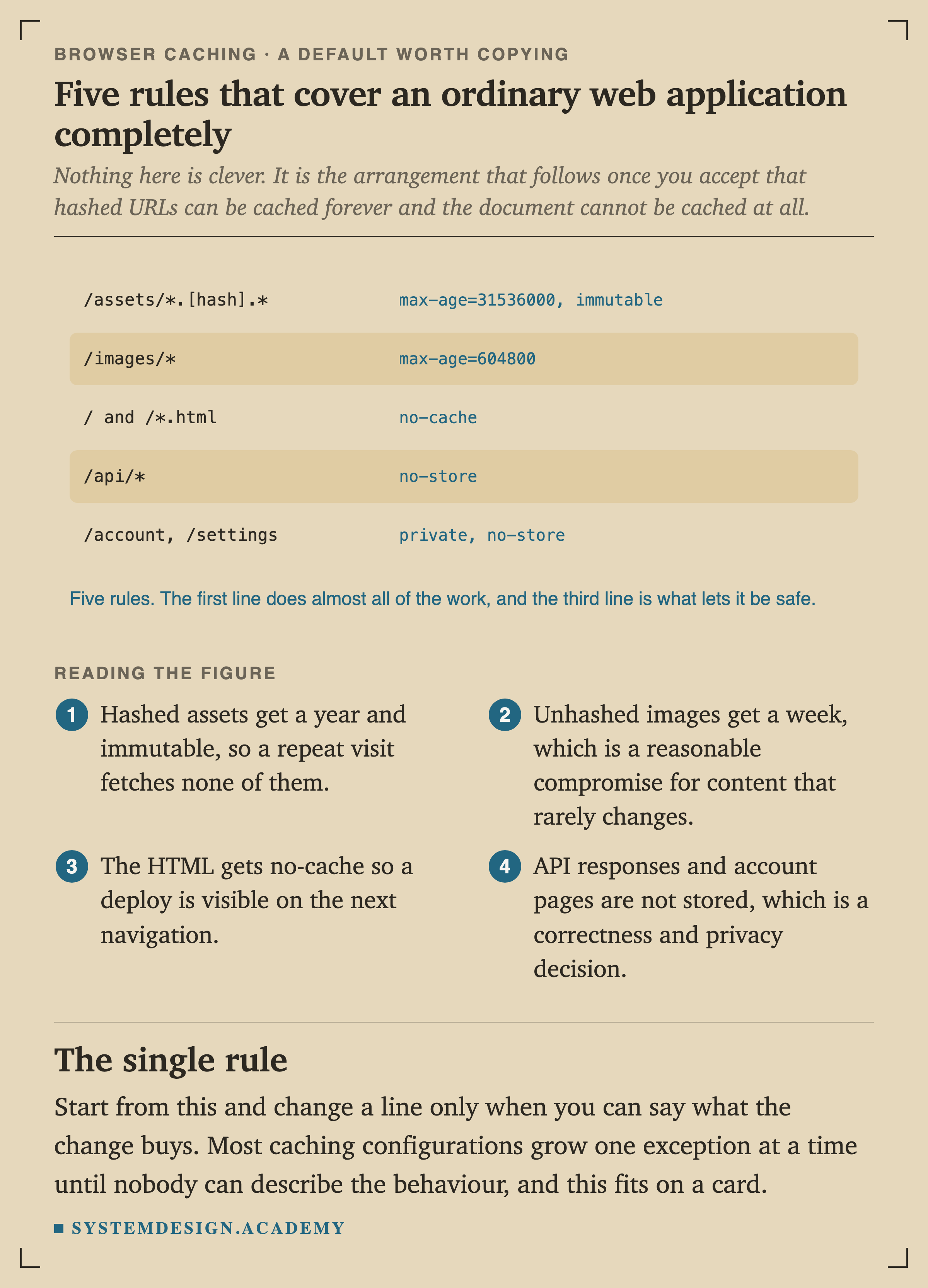
The bottom branch, no-cache, is where nervous teams start. It is the most expensive option and the least considered, and the measurement earlier shows what it buys on a small file, which is nothing.
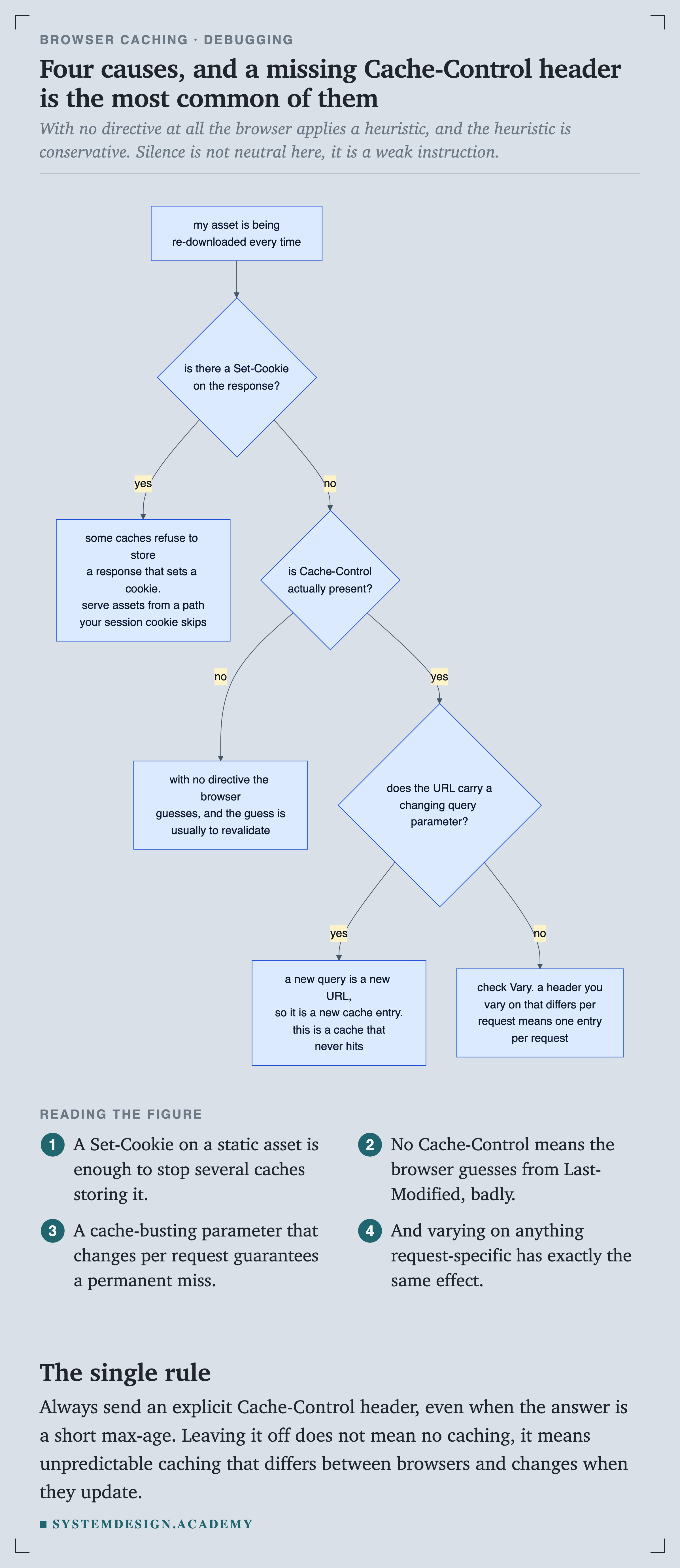
Always send an explicit Cache-Control header, even when the answer is a short . Leaving it off does not mean no , it means unpredictable caching that differs between browsers and changes when they update.
Quick Check
Knowledge Check
4 questions - Score 80% to pass
You serve an account page with Cache-Control: no-cache. Is the page written to the user's disk?
A 10 KB asset takes 124.5 ms to download in full. Roughly how long does a 304 revalidation take?
A thirty asset page is visited again by the same user. How many network requests does 'revalidate everything' make compared to no caching at all?
You ship app.js with max-age=31536000 and discover an hour later that the build was broken. What are your options?