Set Up Your Computer for the AI Course Labs
Every lab in the AI Engineering course runs a free language model on your own computer, through a program called Ollama. This page shows how to install it, which models to download, how to check that everything works, and how to use a different model if you prefer. It answers 21 questions, from a first install to the errors you might meet.

The short version
Install Ollama from ollama.com. In a terminal, run ollama pull qwen2.5:3b and ollama pull nomic-embed-text. Make sure you have Python 3.9 or newer. Then run the check script on this page; when it prints "Ready for the labs." you can run any lab that uses those models.
1. What the labs use, and why
Read this first. It explains the tools every lab in the AI Engineering course assumes, so the rest of the page makes sense.
What is Ollama, and why do the labs use it?
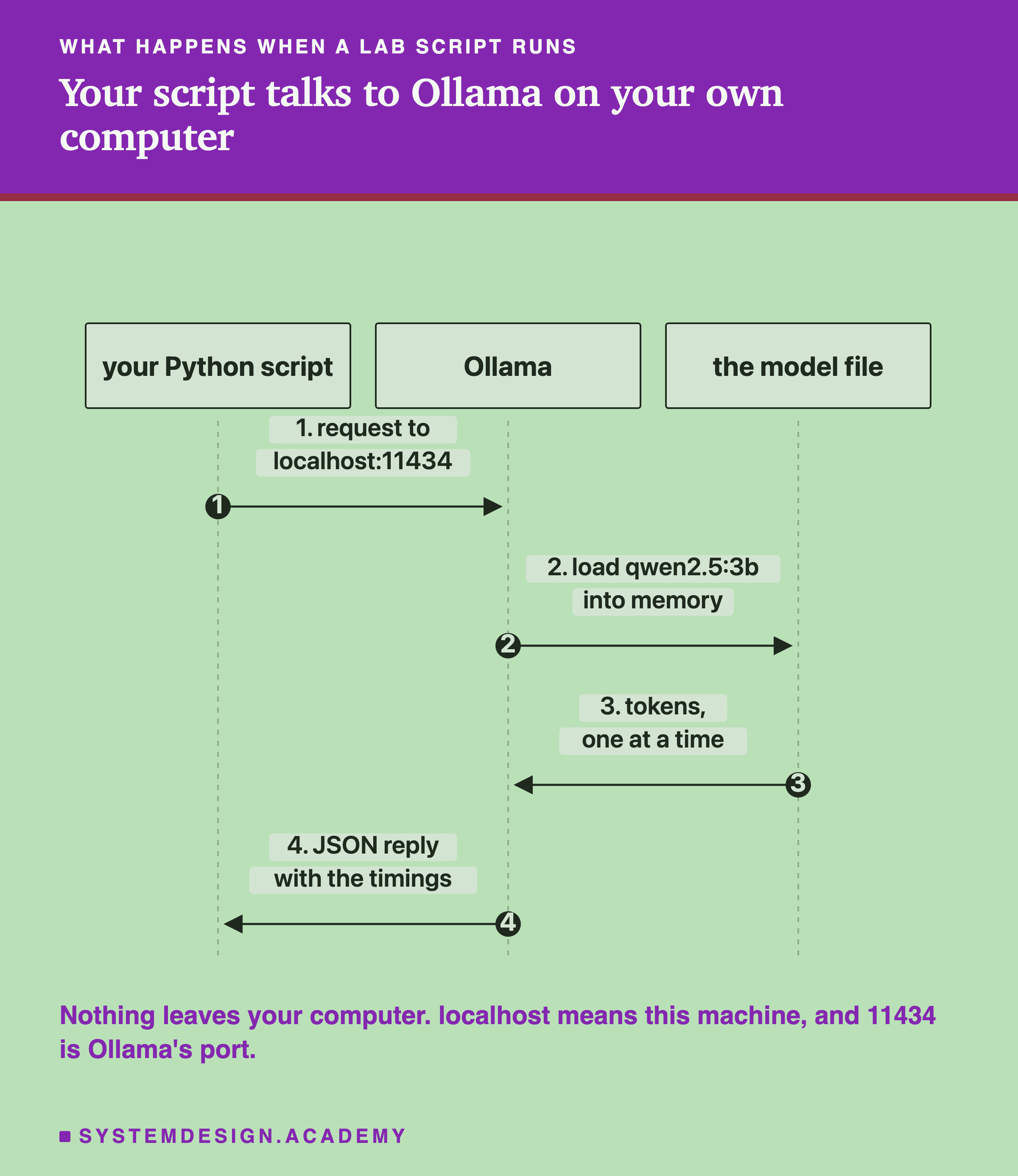
Ollama is a free program that downloads open language models and runs them on your own computer. Once it is running, any program can talk to it at the address http://localhost:11434. localhost means this machine, and 11434 is the port Ollama listens on.
The labs use Ollama for three reasons. It is free, so you can run every lab as often as you like. It runs on your own computer, so nothing you type leaves it. And its replies include exact timings and token counts, which is what many lessons measure.
You do not need an account, an API key or a credit card.
Which models do the labs use?
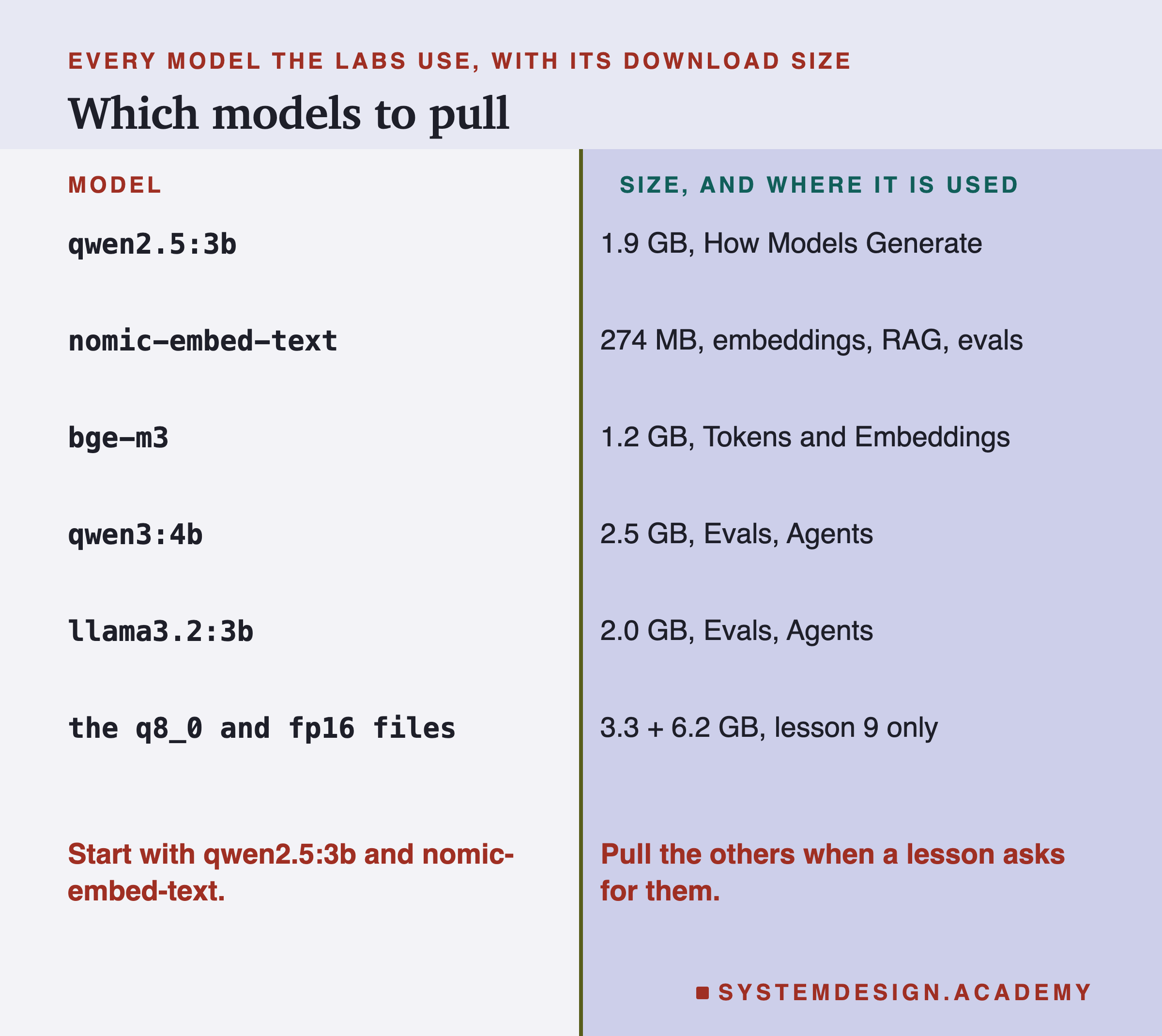
Each lesson names the model it used, and its numbers come from that model. The course uses seven. qwen2.5:3b (1.9 GB) is the main one for the How Models Generate chapter and appears in Agents in Production. nomic-embed-text (274 MB) and bge-m3 (1.2 GB) turn text into embeddings, for the Tokens and Embeddings, Retrieval and Evals chapters. qwen3:4b (2.5 GB) and llama3.2:3b (2.0 GB) are used in the Evals and Agents chapters. Two more versions of qwen2.5:3b, q8_0 (3.3 GB) and fp16 (6.2 GB), are used only in the lesson on quantization.
They were chosen because they are small enough for an ordinary laptop, free to download, and good enough to show the effects each lesson teaches.
You do not need all of them at once. Start with qwen2.5:3b and nomic-embed-text, which together are about 2.2 GB, and pull the others when a lesson asks for them.
What we measured: Download sizes as shown by ollama list on the author's laptop, 2026-09-27. Pulling all seven takes about 17.4 GB of disk.
Do any lessons need a paid account?
No lab that you are asked to run needs one. Everything on this page is free.
A few lessons report results from paid cloud models, which you can read without an account. The error-analysis lessons in the Evals chapter used Mistral Large and Amazon Nova Pro on Amazon Bedrock to grade answers, and one comparison in the Retrieval chapter used Amazon's titan-embed-text-v2:0, also on Bedrock. Repeating those particular runs needs an AWS account with Bedrock access and is billed per token, and this page does not cover that set-up.
What computer do I need?
Ollama's documentation lists the systems it supports: macOS Sonoma (version 14) or newer on Apple M-series or Intel Macs, Windows 10 22H2 or newer (Home or Pro), and Linux.
A graphics card helps but is not required. On an Apple M-series Mac, Ollama uses the built-in graphics processor. On Windows and Linux it uses an NVIDIA or AMD graphics card if you have one with a recent driver, and runs on the main processor if not. On the processor alone everything still works, just more slowly.
For memory, qwen2.5:3b took about 2.1 GB when loaded on the author's laptop. Your operating system and browser need room too, so as a rough guide, 8 GB of memory is a practical minimum and 16 GB is comfortable. For disk, plan on at least 5 GB free for Ollama and the first two models.
What we measured: Every number in the lessons was measured on one laptop: an Apple M4 with 24 GB of memory, running Ollama 0.32.14. On your computer the timings will differ; the patterns the lessons teach should not.
2. Install Ollama
Pick your operating system. The steps are taken from Ollama's own documentation at docs.ollama.com. The macOS steps were followed on the author's laptop; the Windows and Linux steps are quoted from the docs because they could not be run on that laptop.
How do I install Ollama on a Mac?
Go to ollama.com/download and download the macOS version. Open the downloaded ollama.dmg file and drag the Ollama app into your Applications folder.
Open Ollama from Applications. The first time, it may ask for permission to create a link in /usr/local/bin; allow it, because that is what lets you type ollama in a terminal. After that, Ollama runs in the background, with a small icon in the menu bar.
To check, open the Terminal app and type ollama --version. It should print a version number, such as 0.32.14.
How do I install Ollama on Windows?
Go to ollama.com/download and download the Windows installer, OllamaSetup.exe. Run it. It installs for your own account and does not need administrator rights.
After installing, Ollama runs in the background and serves its API at http://localhost:11434.
If you have an NVIDIA graphics card, Ollama's documentation asks for driver version 551.61 or newer. For AMD cards it asks for a recent AMD driver.
To check, open PowerShell or Command Prompt and type ollama --version. In Windows PowerShell 5, the word curl means a different command, so where this page uses curl, type curl.exe instead.
How do I install Ollama on Linux?
Run Ollama's install script in a terminal: curl -fsSL https://ollama.com/install.sh | sh
The script sets Ollama up as a background service called ollama. If it is not running, start it with sudo systemctl start ollama, or run ollama serve in a terminal and leave that terminal open.
To check, type ollama -v, or sudo systemctl status ollama. For an NVIDIA card, install the CUDA drivers and check them with nvidia-smi.
How do I know Ollama is running?
Open a terminal and type curl http://localhost:11434/api/version. If Ollama is running, it answers with its version, for example {"version":"0.32.14"}. If you see a message such as "Connection refused", Ollama is not running: open the app again, or on Linux run ollama serve.
The check script further down this page does this for you, along with everything else.
3. Download the models
Ollama downloads a model once and keeps it on your disk. After that, it loads the model whenever a program asks for it.
How do I download a model?
In a terminal, type ollama pull followed by the model's name. For the main model of the course: ollama pull qwen2.5:3b. For the first embedding model: ollama pull nomic-embed-text.
Ollama shows a progress bar and ends with the word success. Then ollama list shows every model you have, with its size.
To try a model by hand, type ollama run qwen2.5:3b followed by a question in quotes, for example ollama run qwen2.5:3b 'Say hello in five words.' Without a question, ollama run opens a chat; type /bye to leave it.
ollama ps shows which models are loaded in memory right now, how much memory each is using, whether it runs on the graphics processor, and when it will be unloaded. By default a model stays loaded for 5 minutes after it was last used.
ollama pull qwen2.5:3b
ollama pull nomic-embed-text
ollama list
ollama run qwen2.5:3b 'Say hello in five words.'
ollama ps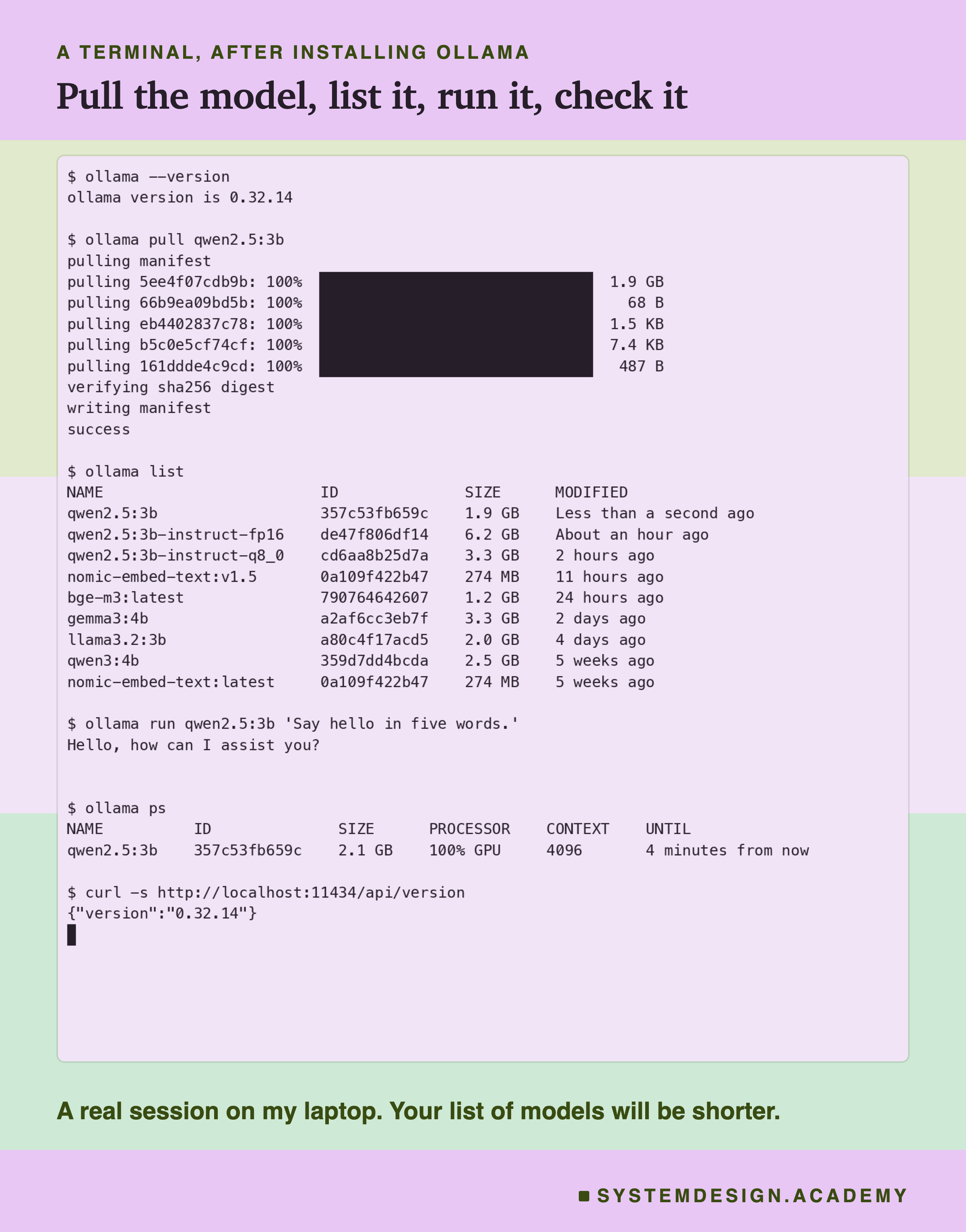
Where are the models stored, and how do I remove one?
Ollama's documentation gives the folders: ~/.ollama/models on macOS, /usr/share/ollama/.ollama/models on Linux, and C:\Users\<your name>\.ollama\models on Windows. On Windows you can move them by setting the OLLAMA_MODELS environment variable and restarting Ollama.
To delete a model you no longer need, type ollama rm followed by its name, for example ollama rm qwen2.5:3b-instruct-fp16. You can pull it again later.
4. Set up Python
Every lab script is Python. Most use only what comes with Python, so there is nothing else to install. Three lessons need extra packages, listed below.
Which Python do I need?
Python 3.9 or newer. The labs were run with Python 3.13. Check yours by typing python3 --version (on Windows, python --version). If you do not have Python, download it from python.org.
A virtual environment keeps the course's packages apart from the rest of your computer. Create one in the folder where you keep the lab scripts with python3 -m venv .venv, then turn it on with source .venv/bin/activate on macOS and Linux, or .venv\Scripts\activate on Windows. Turn it on again each time you open a new terminal.
Which lessons need extra Python packages?
Tokens and Embeddings lessons 1 and 2 count tokens with OpenAI's tokenizer: pip install tiktoken.
How Models Generate lesson 4, on attention, reads the attention weights of a small model directly, which Ollama cannot show: pip install torch transformers. The first run then downloads that model, Qwen2.5-0.5B, from Hugging Face, which is about 988 MB, and keeps it for later runs.
Every other lab uses only Python's standard library, plus Ollama.
pip install tiktoken
pip install torch transformersHow do I check everything at once?
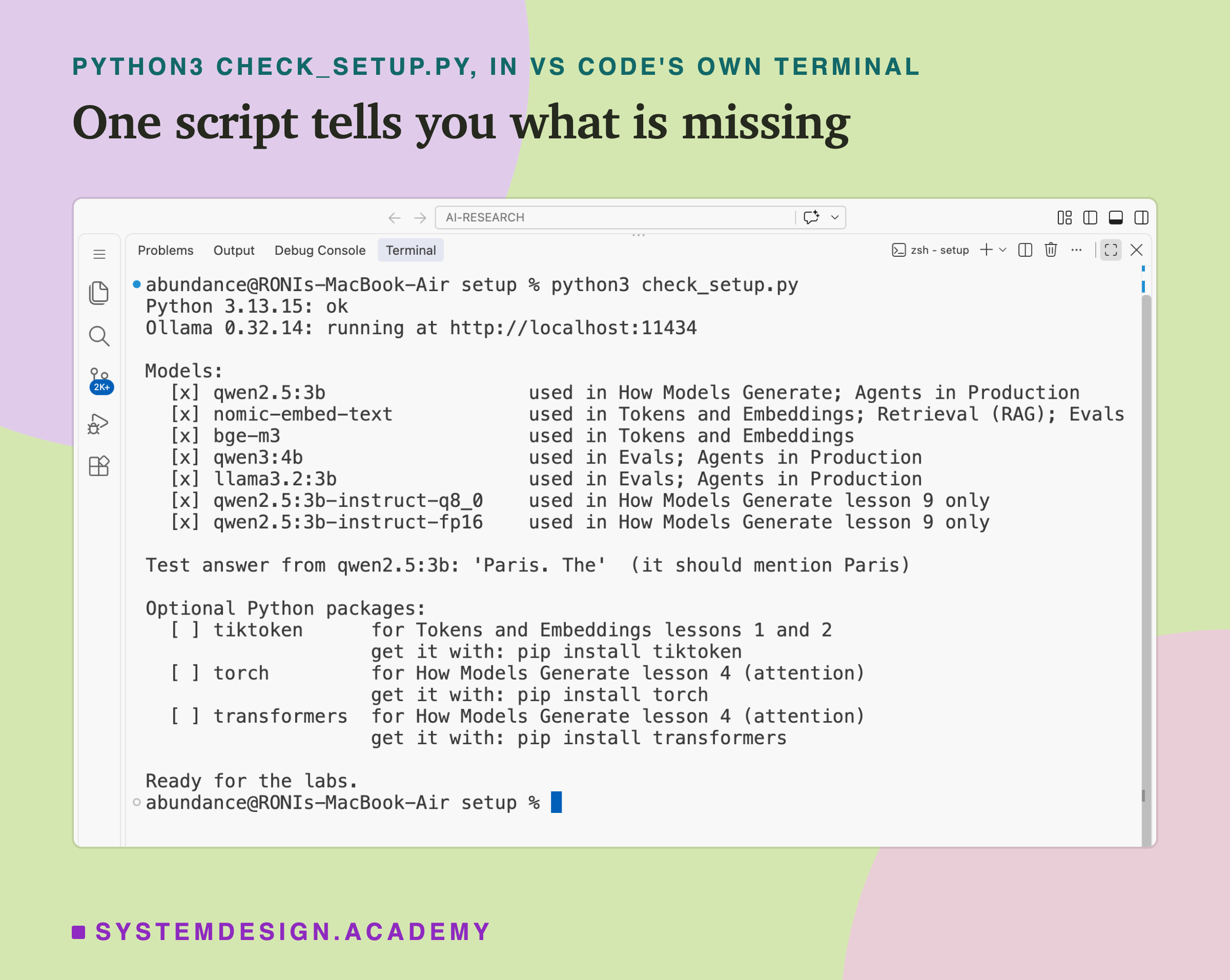
Save the script below as check_setup.py and run it with python3 check_setup.py. It needs nothing but Python.
It checks your Python version, checks that Ollama is running, lists which of the course's models you have and prints the exact ollama pull command for each one you do not, asks qwen2.5:3b a one-line question to prove it answers, and lists the optional packages with the command to install each.
If it prints "Ready for the labs." you can run every lab that uses the models it ticked.
"""Check that your computer is ready for the course labs. Standard Python only; nothing to install.

    python check_setup.py

It checks: your Python version, that Ollama is running on this computer, which of the course's
models you have pulled (and the command for each one you have not), that a model can actually
answer, and the two optional Python packages some lessons use.
"""
import importlib.util
import json
import sys
import urllib.request

OLLAMA = "http://localhost:11434"
# The models the labs use, the chapters that need them, and their download sizes (from ollama list).
MODELS = [
    ("qwen2.5:3b", "How Models Generate; Agents in Production", "1.9 GB"),
    ("nomic-embed-text", "Tokens and Embeddings; Retrieval (RAG); Evals", "274 MB"),
    ("bge-m3", "Tokens and Embeddings", "1.2 GB"),
    ("qwen3:4b", "Evals; Agents in Production", "2.5 GB"),
    ("llama3.2:3b", "Evals; Agents in Production", "2.0 GB"),
    ("qwen2.5:3b-instruct-q8_0", "How Models Generate lesson 9 only", "3.3 GB"),
    ("qwen2.5:3b-instruct-fp16", "How Models Generate lesson 9 only", "6.2 GB"),
]
PACKAGES = [("tiktoken", "Tokens and Embeddings lessons 1 and 2"),
            ("torch", "How Models Generate lesson 4 (attention)"),
            ("transformers", "How Models Generate lesson 4 (attention)")]


def get(path, body=None):
    data = json.dumps(body).encode() if body is not None else None
    req = urllib.request.Request(OLLAMA + path, data=data, headers={"Content-Type": "application/json"})
    return json.loads(urllib.request.urlopen(req, timeout=120).read())


ok = True
v = sys.version_info
print(f"Python {v.major}.{v.minor}.{v.micro}: {'ok' if v >= (3, 9) else 'too old, install 3.9 or newer'}")
ok &= v >= (3, 9)

try:
    version = get("/api/version")["version"]
    print(f"Ollama {version}: running at {OLLAMA}")
except Exception as e:
    print(f"Ollama: NOT reachable at {OLLAMA} ({e.__class__.__name__}).")
    print("  Start the Ollama app (macOS, Windows) or run 'ollama serve' (Linux), then run this again.")
    sys.exit(1)

have = {m["name"] for m in get("/api/tags")["models"]}
have |= {n.split(":")[0] for n in have if n.endswith(":latest")}
print("\nModels:")
for name, where, size in MODELS:
    if name in have:
        print(f"  [x] {name:<27} used in {where}")
    else:
        print(f"  [ ] {name:<27} used in {where}")
        print(f"                                  get it with: ollama pull {name}   ({size})")

if "qwen2.5:3b" in have:
    reply = get("/api/generate", {"model": "qwen2.5:3b", "prompt": "The capital of France is", "raw": True,
                                  "stream": False, "options": {"num_predict": 3, "temperature": 0}})
    print(f"\nTest answer from qwen2.5:3b: {reply['response'].strip()!r}  (it should mention Paris)")

print("\nOptional Python packages:")
for pkg, where in PACKAGES:
    found = importlib.util.find_spec(pkg) is not None
    print(f"  [{'x' if found else ' '}] {pkg:<13} for {where}")
    if not found:
        print(f"                    get it with: pip install {pkg}")

print("\nReady for the labs." if ok else "\nFix the items above, then run this again.")
5. Using a different model
You are free to use any model you like. The labs are written so that changing the model is one line. Here is what to change and what to expect.
How do I run a lab with a different model?
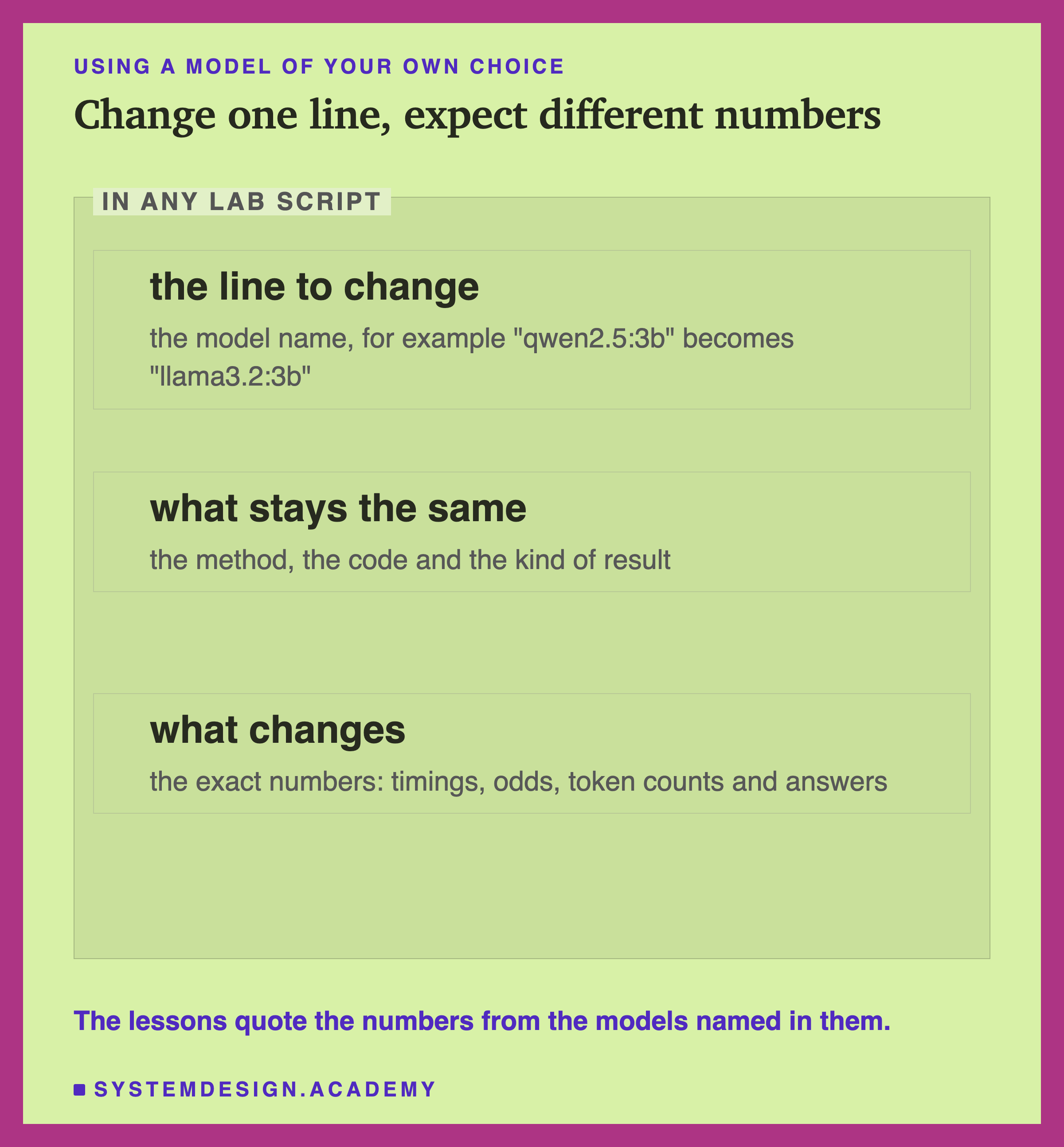
Every lab script names its model once, near the top or in the request, for example "model": "qwen2.5:3b". Pull the model you want with ollama pull, then change that one name. Nothing else in the script needs to change.
Browse the models Ollama offers at ollama.com/library. Each model page shows the exact name to pull and the sizes available.
Will I get the same numbers as the lesson?
No, and that is expected. The numbers in each lesson, such as timings, probabilities, token counts and scores, come from the named model on the author's laptop. A different model, or a different computer, gives different numbers.
What should hold is the pattern the lesson teaches: for example that reading a prompt is faster per token than writing a reply, that a prompt longer than the window is cut, or that a smaller file writes faster. If your result goes the other way, that is worth a closer look, and worth telling us.
Does any model work in any lab?
Most labs work with any chat model Ollama can run. A few need a particular kind of model.
Embedding labs, in the Tokens and Embeddings and Retrieval chapters, need an embedding model, such as nomic-embed-text or bge-m3. A chat model is not a replacement.
The chat template lesson shows Qwen's own turn markers, <|im_start|> and <|im_end|>. Other model families use different markers; ollama show <model> --template prints them.
Labs that compare sizes or formats of one model, such as the quantization lesson, need all the versions they compare.
Larger models give better answers but need more memory and write more slowly. On a computer with little memory, a 1B or 3B model is the sensible choice.
6. When something goes wrong
These are the problems a first-time setup usually runs into, with the exact messages you will see.
A lab fails with "Connection refused". What do I do?
The full message from Python is URLError: <urlopen error [Errno 61] Connection refused> (the number can differ on Windows and Linux). It means nothing is listening at localhost:11434, so Ollama is not running.
Open the Ollama app, or on Linux run ollama serve or sudo systemctl start ollama, and try again. curl http://localhost:11434/api/version tells you when it is back.
A lab says the model was not found.
Ollama answers {"error":"model 'qwen2.5:3b' not found"} with the HTTP status 404, and Python reports HTTP Error 404: Not Found. The model is not on your computer yet. Pull it with ollama pull and the exact name from the error.
Check the spelling too: qwen2.5:3b and qwen2.5:3b-instruct-q8_0 are different models.
ollama serve says the address is already in use.
The message is Error: listen tcp 127.0.0.1:11434: bind: address already in use. It means Ollama is already running, usually the app in the background. You do not need a second one; close the terminal and use the one that is running.
Everything works but it is very slow.
Run ollama ps while a lab is running. The PROCESSOR column shows whether the model runs on the graphics processor (GPU) or the main processor (CPU). On the CPU, expect it to be several times slower than the timings in the lessons.
Close other large programs to free memory, or try a smaller model. The first request after a pause is also slower, because Ollama has to load the model again.
Where can I see what Ollama is doing?
Ollama writes a log. On macOS: cat ~/.ollama/logs/server.log. On Linux: journalctl -u ollama --no-pager --follow --pager-end. On Windows: open the folder %LOCALAPPDATA%\Ollama and read server.log.
One lesson uses this log to show a warning that never reaches your program: when a prompt is too long for the window, Ollama cuts it and writes "truncating input prompt" only in its log.
Learn it properly, not just the answers
Every answer on this page comes from our AI Engineering course: 136 lessons on RAG, evals, agents, serving, security and MLOps. Many of them are built around a real experiment. You learn why the answer is right, which is what an interviewer checks with the second question. 10 lessons are free to read, with no card needed.