Run an LLM Locally: Ollama vs LM Studio vs llama.cpp vs vLLM
A local LLM is a language model that runs on your own computer. Your text never has to leave it. You need two things: a model file, and a program that runs it. This page explains four common programs in plain words: Ollama, LM Studio, llama.cpp and vLLM. It also shows real speed and memory numbers, measured on one Mac. 35 questions in all.
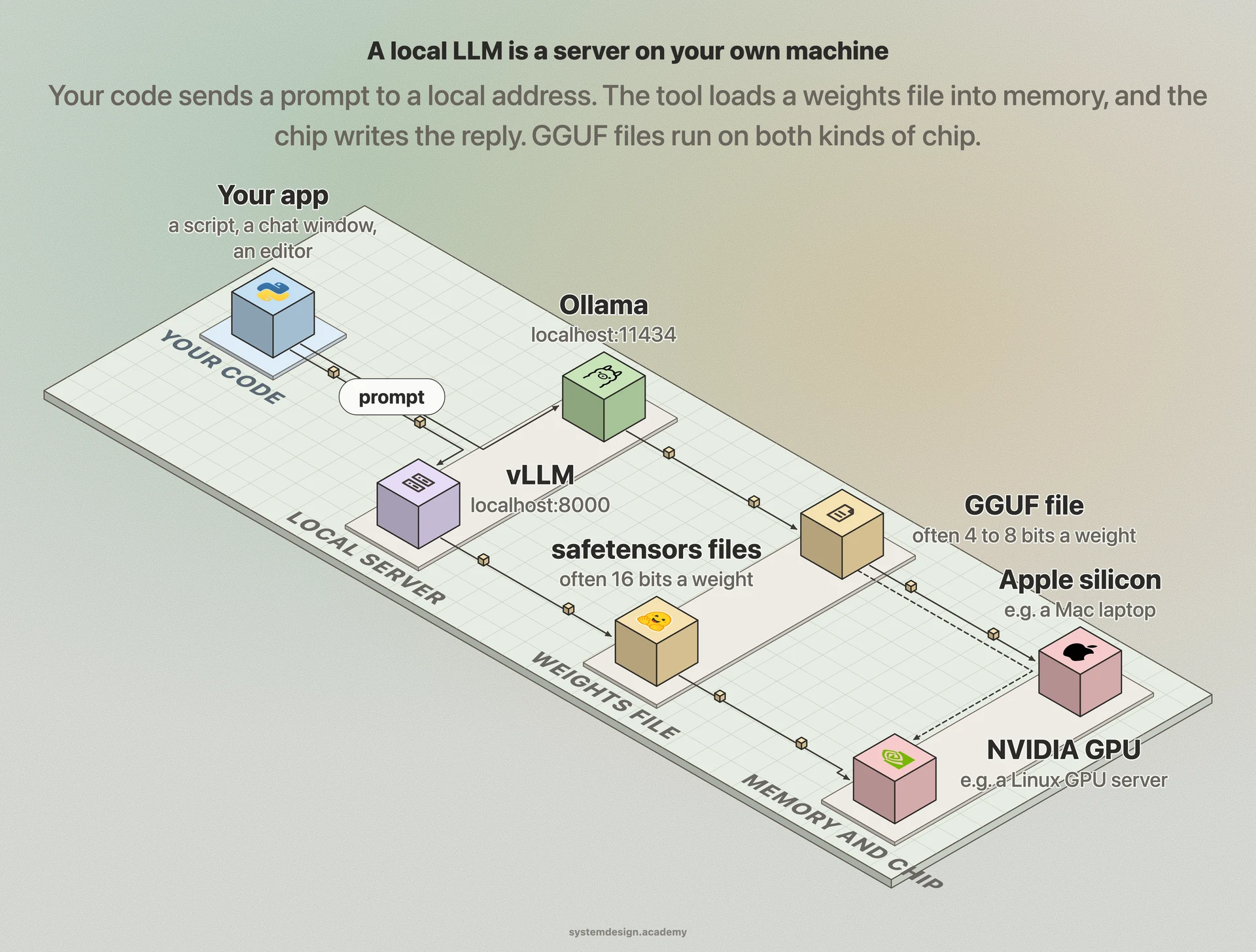
Where each piece of a local LLM livesA local LLM is a program on your own computer that answers at a local web address. It loads a file of learned numbers, the weights, into memory, and the chip uses them to write the reply. Nothing has to leave the machine.
Where each piece of a local LLM livesA local LLM is a program on your own computer that answers at a local web address. It loads a file of learned numbers, the weights, into memory, and the chip uses them to write the reply. Nothing has to leave the machine.
The short answer
On one computer, start with Ollama if you like a terminal or want to call the model from code. Start with LM Studio if you want an app with a chat window. Use llama.cpp, the engine Ollama ran for every model we tested, when you need full control. Use vLLM when many people share one GPU server. Whichever you pick, the model has to fit in memory. A 4-bit file is about a third of the 16-bit size, and it writes faster.
1. The basics
Start here if you are new. No maths and no code yet.
What is a local LLM?
An LLM (large language model) is a program that reads text and writes text. A local LLM is one that runs on your own computer, not on a company's servers.
Two parts are needed. The first is the model: a file of billions of numbers, called weights, that the model learned in training. The second is a program that loads that file and runs it, such as Ollama, LM Studio, llama.cpp or vLLM. This page compares those four programs.
Once the program is running, it answers at a local web address, such as http://localhost:11434. localhost means this computer. Your own apps send a prompt there and get the reply back.
Why run an LLM locally?
Privacy. Your prompts and documents stay on your machine.
No bill per word. Hosted models charge for every token, a word or part of a word. A local model costs only the electricity and the computer you already have.
It works offline, once the model file is downloaded. And you control the exact model version, so it does not change under you.
The cost is quality and speed. A laptop can only run much smaller models than the big chat apps use. It also writes more slowly than a large server.
Is a local LLM really private?
The tools say so, for local use. Ollama's documentation says: "Ollama runs locally. We don't see your prompts or data when you run locally." LM Studio's privacy page makes the same promise for local models. It says your messages, chat histories and documents are never sent from your system.
Two things can still send your text off the machine. First, Ollama also offers cloud models, which run on Ollama's servers, not yours. Its FAQ says that for these "we process your prompts and responses to provide the service". If you pick one, your prompts leave your computer. LM Studio's optional Cloud Services are the same kind of exception.
Second, by default Ollama only listens on 127.0.0.1, which is your own machine. If you change that setting, called OLLAMA_HOST, to 0.0.0.0, other computers on your network can send it prompts too.
You need the internet once, to download a model. That download does not send your prompts anywhere.
This is what people usually mean by a private LLM. You run the model on hardware you control, so no outside company handles your text.
Is a local model as good as ChatGPT?
Usually not, for hard open questions. A hosted chat app runs very large models on large servers. On a laptop you run a smaller open model, one whose weights anyone can download. The Qwen2.5 models measured below are examples.
Small models can still do narrow jobs well. Examples are sorting support tickets, pulling fields out of text, or answering from a document you supply. Test the model on your own task before you decide. Our course shows how to compare models fairly.
The model must fit in memory, with room left for your operating system. A 1.5 billion weight model at 4 bits took about 1.1 GB on our test Mac. A 7 billion weight model at 4 bits took about 4.6 GB. The memory section below explains how to work this out for any model.
LM Studio recommends 16 GB of memory or more. Ollama on a Mac needs macOS Sonoma (version 14) or newer. On an Intel Mac it runs on the processor only.
A graphics card (GPU) makes writing much faster, but small models also run on the main processor (CPU) alone. vLLM is the exception: it is built for GPU servers, and its install guide lists Linux as the operating system.
Every comparison of these tools uses the same few terms. Each one is explained once, here, in plain words.
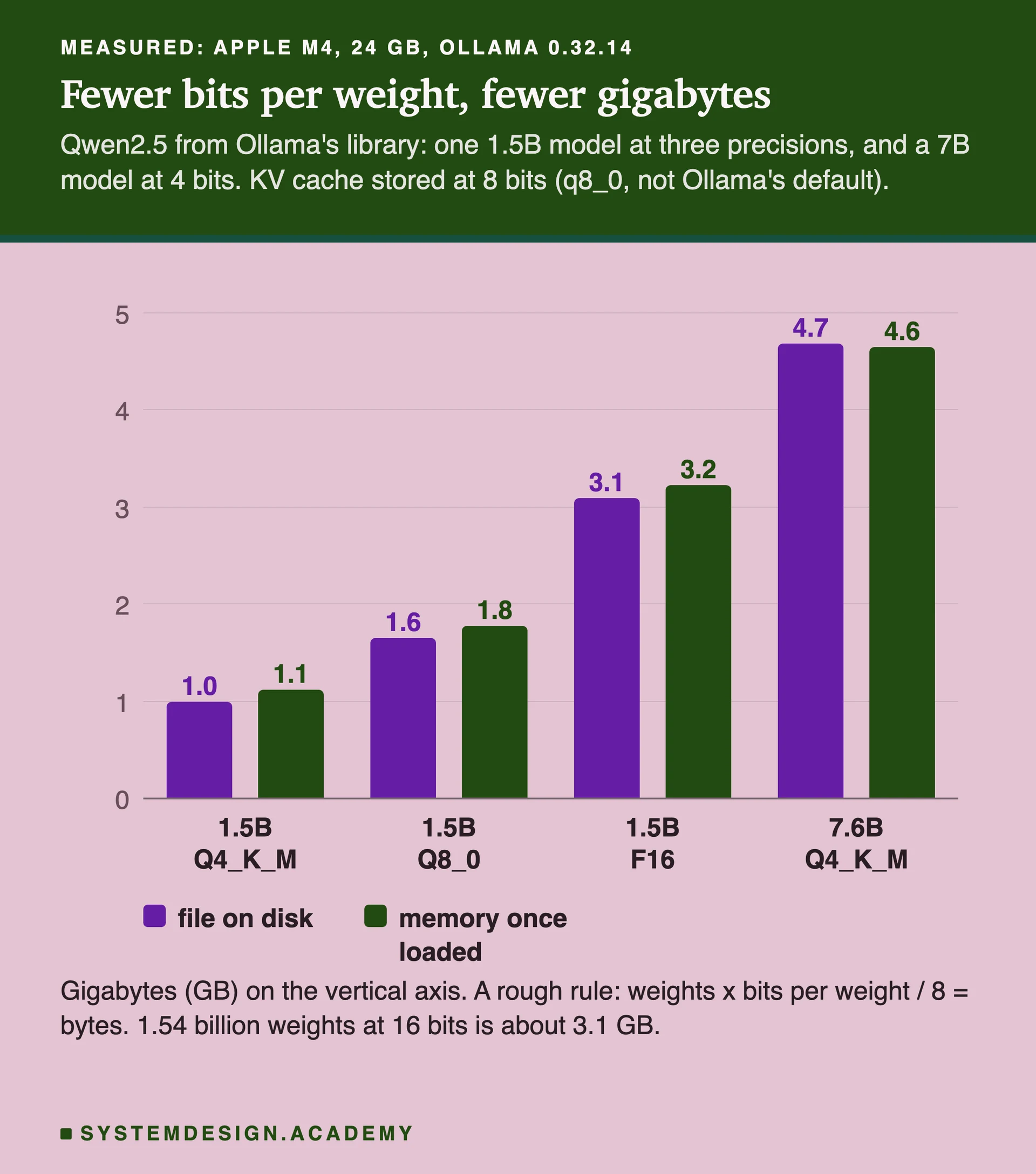
Fewer bits per weight, fewer gigabytesEach bar pair is one model: the file on disk, then the memory it took once loaded. Halving the bits roughly halves the size. In our runs, each 1.5B model took a little more memory than its file. The 7B model took slightly less.
What are weights and tokens?
Weights are the numbers a model learned in training. A "7B" model has about 7 billion of them. All of them must sit in memory while the model runs.
A token is the small piece of text a model reads and writes. It is a short word, or part of a longer one. The model writes its reply one token at a time.
It is how fast a model works. Writing speed is how many tokens it writes each second. Reading speed is how many prompt tokens it reads each second.
The two are very different. On our test Mac, qwen2.5:1.5b read a long prompt at about 907 tokens a second, but wrote at about 72. Reading handles the prompt in large batches, many tokens at once. Writing must make one token, then the next, then the next.
Ollama reports both in every reply: eval_count tokens written in eval_duration nanoseconds. A nanosecond is a billionth of a second. Divide the count by the seconds to get the speed.
VRAM is the memory on a graphics card. On a PC with an NVIDIA card, the model runs fastest when all its weights fit in VRAM. If they do not, part of the model runs on the slower CPU from normal memory.
Apple silicon Macs have unified memory: one pool shared by the CPU and the GPU, with no separate card. On our test Mac, ollama ps reported every model fully in GPU memory.
To check where a model landed, run ollama ps. Its PROCESSOR column says, for example, 100% GPU, or a split between CPU and GPU.
What is quantization?
Quantization means storing each weight with fewer bits. A bit is a 0 or a 1. With 16 bits a number can be stored finely. With 4 bits there are only 16 possible values, so each weight is rounded.
The model gets much smaller and usually writes faster. The cost is some accuracy. llama.cpp's own documentation says the process "may introduce some accuracy loss".
You will see names such as F16, Q8_0 and Q4_K_M. llama.cpp's own table gives them 16, about 8.5 and about 4.9 bits per weight. Q4_K_M is a mix: most weights at 4 bits, and some of the most sensitive tables at 6 bits. Ollama's default Qwen2.5 downloads, for example, are Q4_K_M.
GGUF is a file format for models. Its specification says it is "designed for fast loading and saving of models". One GGUF file holds the weights and the information needed to run them.
Ollama, LM Studio and llama.cpp all read GGUF files. vLLM normally loads models from Hugging Face, a website where people share models, in another format called safetensors. Its documentation calls its own GGUF support "highly experimental".
While a model reads your prompt, it works out two lists of numbers for every token, called keys and values. It keeps them, so it never has to work them out again. That store is the KV cache (K for keys, V for values).
The cache needs memory for every token of context, and it grows with the context length you allow. That is why a long chat can run out of memory even when the model itself fits.
It is the most tokens a model will handle in one request, prompt and reply together. In Ollama the setting is called num_ctx.
Ollama's context-length page says the default depends on how much GPU memory it finds. It is 4k tokens under 24 GiB, 32k from 24 to 48 GiB, and 256k above that. A GiB is 1,073,741,824 bytes, slightly more than a GB (1,000,000,000 bytes). On our 24 GB Mac, Ollama's log showed 16 GiB of GPU memory, and it chose 4,096 tokens. You can raise it, but it costs memory, as the measurements below show.
All four do the same core job: load a model and answer prompts. They differ in who they are built for.
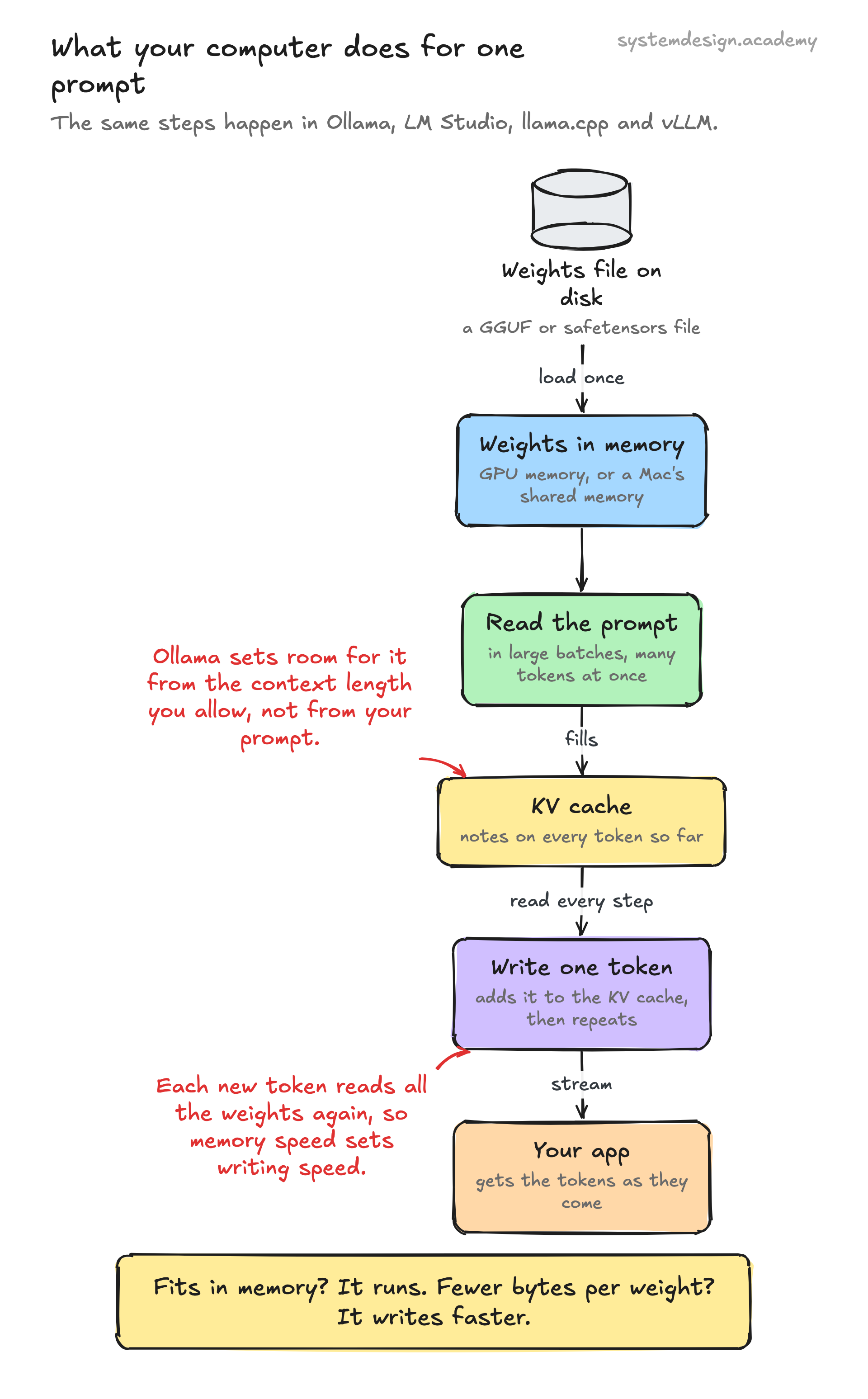
What every one of these tools does for one promptThe four tools wrap the same steps. Load the weights once, read the prompt in large batches, then write one token at a time. Memory decides whether a model runs at all, and memory speed decides how fast it writes.
What is Ollama?
Ollama is a free, open-source program that downloads open models and runs them on your computer. Open source means anyone can read and change its code. Its MIT license lets you use it for almost anything, including at work. It runs on macOS, Windows and Linux.
You use it from a terminal: ollama pull qwen2.5:1.5b downloads a model, and ollama run qwen2.5:1.5b chats with it. It also runs a small server at http://localhost:11434. That server offers an API: a set of web addresses your code can send requests to.
It uses NVIDIA and AMD graphics cards, and the GPU built into Apple silicon Macs. A model stays loaded for 5 minutes after its last use, then Ollama frees the memory.
LM Studio is a desktop app for running models locally. You search for a model, download it and chat with it in a window, without a terminal.
Under the hood it runs models with llama.cpp on Mac, Windows and Linux. On Apple silicon Macs it can also use MLX. MLX is Apple's own machine learning library.
It has been free for use at work too since July 2025. But it is not open source: its terms call its source code a trade secret. On a Mac it needs Apple silicon and macOS 14 or newer. Its command-line tool, lms, can start a local server, and its documentation's examples use port 1234.
What is llama.cpp?
llama.cpp is an open-source engine, written in C and C++, that runs models stored as GGUF files. It is under the MIT license. Running a trained model to get answers is called inference. Its stated goal is LLM inference "with minimal setup and state-of-the-art performance on a wide range of hardware".
It supports many kinds of hardware: Apple silicon, NVIDIA and AMD graphics cards, ordinary processors and more. When a model does not fit in GPU memory, it can split the model between the GPU and the CPU.
It comes with tools rather than an app. llama-server runs a local web server, by default at 127.0.0.1 port 8080. The quantize tool turns a large GGUF file into a smaller one.
What is vLLM?
vLLM is an open-source serving engine under the Apache 2.0 license. Its own description is "a high-throughput and memory-efficient inference and serving engine for LLMs". Throughput means how much total work it gets through, across all users.
It is built for a server with a GPU that many people call at once. Its install guide lists Linux and NVIDIA cards of compute capability 7.5 or higher. That is NVIDIA's version number for a chip design; the guide's examples include the RTX 20 series and the T4. It also lists AMD cards through ROCm, AMD's GPU software. Windows needs WSL (Windows Subsystem for Linux), and Apple silicon support is experimental and needs a build from source.
Two ideas make it fast for many users. PagedAttention stores the KV cache in small fixed-size blocks, an idea borrowed from how operating systems manage memory. Continuous batching adds new requests to the work already running instead of waiting for it to finish.
Yes, for GGUF models like the ones we tested. Ollama's README lists llama.cpp under "Supported backends". On our Mac, Ollama's own log shows it starting llama-server, llama.cpp's server, for every model on this page. Both read GGUF files and use the same quantization names, such as Q4_K_M.
Since 2026 Ollama also has a second engine for some models on Apple silicon Macs. It is built on MLX, Apple's machine learning library. Ollama's blog announced it as a preview on 30 March 2026. That preview covered one model, on Macs with more than 32 GB of memory. Later posts show MLX versions of other models, such as gemma4:12b-mlx.
So the two are close relatives, not rivals. Ollama adds the parts around the engine. It has a model library, one-command downloads, automatic loading and unloading, and its own API.
4. Head to head
The four comparisons people search for most, then a summary you can scan.
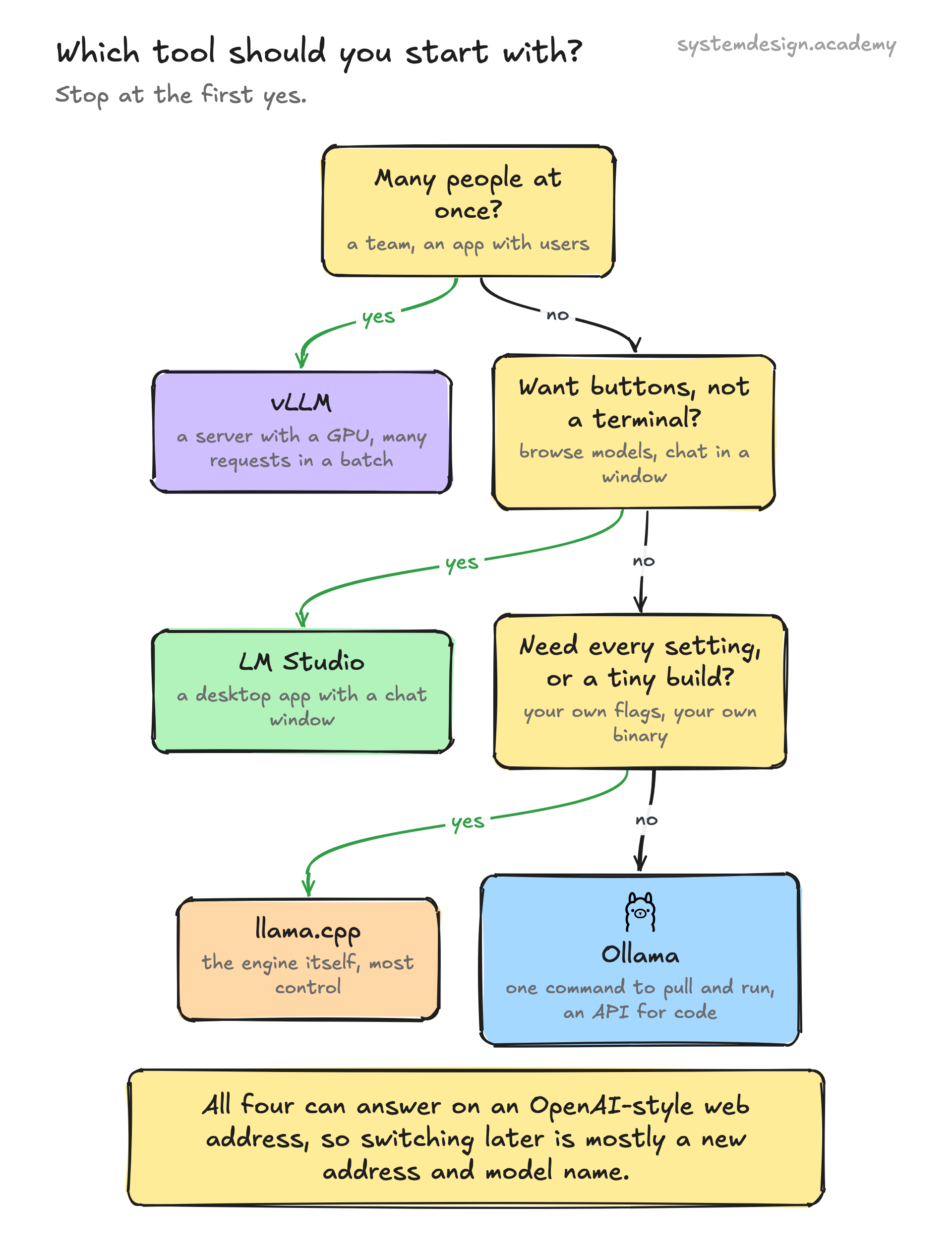
Which tool to start withStop at the first yes. Most people on one laptop end at Ollama or LM Studio. vLLM is for a GPU server shared by many users.
Ollama vs LM Studio: which should I use?
Pick LM Studio if you want an app with buttons: browse models, download them and chat in a window. Pick Ollama if you want a terminal command and a server your code can call. It is also open source.
Both read GGUF files and both run llama.cpp underneath. On Apple silicon, both can also use Apple's MLX library (Ollama for some models only). Both can serve an OpenAI-style API on your machine. That is an API that accepts the same requests as OpenAI's own, so code written for OpenAI works with a new address. Ollama runs on Intel Macs (processor only), while LM Studio does not support them.
You can install both and keep both. They are separate programs with separate model folders, so the same model downloaded in each takes disk space twice.
Ollama vs llama.cpp: what is the difference?
llama.cpp is the engine. Ollama is a program built around it, and lists it as a supported backend.
With llama.cpp you choose every setting yourself and run the tools directly, such as llama-server. With Ollama you type ollama run and it finds, downloads, loads and unloads the model for you.
Choose llama.cpp for a setting Ollama hides, an unusual chip, or to build the engine into your own software. Choose Ollama when you just want a model running.
vLLM vs Ollama: which is better?
They are built for different jobs. Ollama is for one person on one computer, including laptops with no graphics card. vLLM is for a GPU server that answers many people at the same time.
Ollama processes one request per model at a time by default (its OLLAMA_NUM_PARALLEL setting defaults to 1). vLLM was designed to batch many requests together and to waste little KV cache memory. Its research paper reports 2 to 4 times the throughput of the systems it was tested against.
So use Ollama to build and test on your own machine. Move to vLLM when real users share one GPU server. Both speak the OpenAI-style API, so your app code changes little.
llama.cpp runs on a very wide range of hardware: Macs, PCs with or without a GPU, and many other chips. It works with GGUF files, often quantized to 4 to 8 bits a weight. So bigger models fit on small machines.
vLLM is built for a supported GPU on Linux. It usually loads Hugging Face models, often at 16 bits a weight, so it needs more memory. It can also load 4-bit and 8-bit models in other formats, such as AWQ, GPTQ and FP8. In return it is built to serve many users at once.
llama.cpp's server can batch requests too: continuous batching is on by default. But vLLM was designed around many users from the start. For one user on a laptop, llama.cpp. For a busy GPU server, vLLM.
Ollama, LM Studio, llama.cpp and vLLM at a glance
Ollama. Open source, MIT license. macOS, Windows, Linux. Terminal plus a local API at port 11434. GGUF files (it can import safetensors too). Best for: one computer, from a terminal or your own code.
LM Studio. Free, also at work, but not open source. Apple silicon Macs, Windows, Linux. Desktop app, plus a local server (examples use port 1234). GGUF files, and MLX on a Mac. Best for: exploring models in an app.
llama.cpp. Open source, MIT license. Very wide hardware support. Command-line tools, llama-server at port 8080. GGUF files. Best for: full control, or building a model into your own software.
vLLM. Open source, Apache 2.0 license. Linux with a supported GPU. A Python library and an OpenAI-style server at port 8000. Hugging Face models, usually safetensors. Best for: many users on a GPU server.
Which one is fastest?
There is no single answer. We did not measure the other three tools, so we will not invent a ranking. Speed depends on the model, its quantization, your hardware and how many requests arrive at once.
Two things are safe to say. For one user, writing speed is mostly limited by how fast memory can feed the weights to the chip. Our numbers fit that. Multiply each file's size by its writing speed and you get 71, 76, 81 and 85 GB a second. Apple lists the M4's memory bandwidth, its top speed for moving data, as 120 GB a second. So every model was moving its weights at well over half that limit. For many users at once, a tool that batches requests gets far more total work done on the same GPU. vLLM is built for that.
If speed matters, measure on your own machine with your own prompts. The code example further down shows the two numbers you need.
5. Real numbers from one Mac
We ran Ollama on an Apple M4 MacBook Air with 24 GB of memory, macOS 15.6, Ollama 0.32.14. Four Qwen2.5 models from Ollama's library, the same prompt, three runs each. Temperature 0 means the model always picks its most likely next token, so runs are repeatable. Ollama's log shows it ran all four GGUF files with llama-server, the llama.cpp path, not its MLX engine. We did not install LM Studio, llama.cpp or vLLM, so they have no numbers here. One setting differs from Ollama's default: this Mac stores the KV cache at 8 bits, not 16. With the default, that part of memory would be about twice as big.
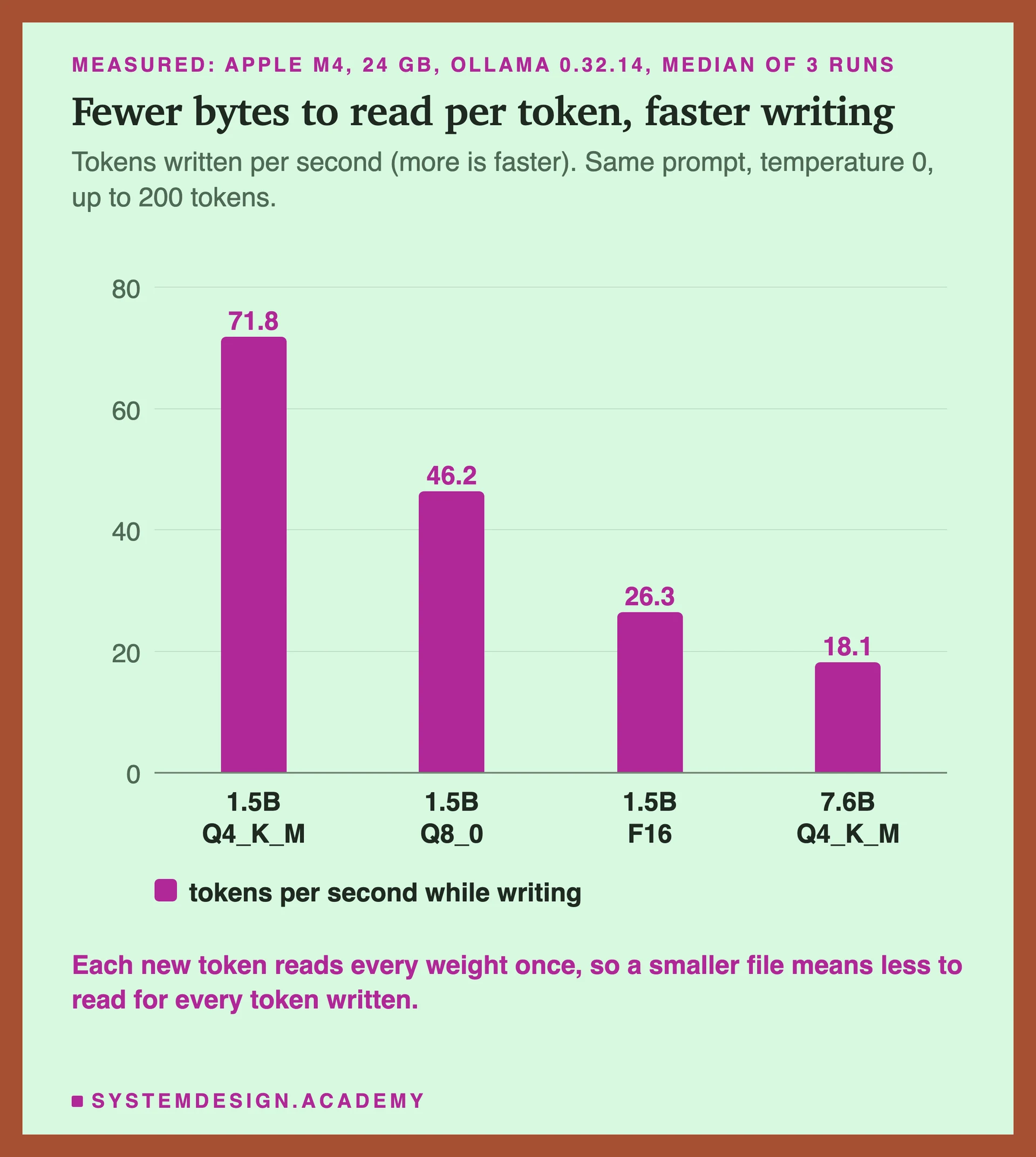
Writing speed, measuredThe same 1.5B model wrote fastest at 4 bits and slowest at 16. The 7B model at 4 bits was slower than every 1.5B version. It has the most bytes to read for each token.
How fast is a local LLM on a Mac?
On our M4 Mac, qwen2.5:1.5b at 4 bits wrote about 72 tokens a second. qwen2.5:7b, which has 7.6 billion weights, wrote about 18 at 4 bits.
Reading the prompt was much faster. On a prompt of 1,479 tokens, the 1.5B model read about 907 tokens a second, and the 7B about 160.
The first call also has to load the model into memory. Here that took about 0.9 seconds for each 1.5B file and 1.4 seconds for the 7B file. Each file had just been downloaded, so it was probably still in the system's cache.
What we measured: an Apple M4 MacBook Air with 24 GB of memory, macOS 15.6, Ollama 0.32.14. Writing: median of 3 runs of up to 200 tokens (the median is the middle value of the three). 1.5B Q4_K_M 71.8 tokens/s (runs 68.7, 71.8, 72.3); 7B Q4_K_M 18.1 (runs 18.3, 18.1, 18.1). Reading: one prompt of 1,479 tokens, 907 tokens/s (1.5B) and 159.8 (7B).
Does quantization make a model faster?
Yes, for writing. The same 1.5B model wrote about 72 tokens a second at Q4_K_M, 46 at Q8_0 and 26 at F16. Fewer bits per weight meant fewer bytes to move for every token.
Reading the prompt changed much less. It was about 907 tokens a second at Q4_K_M and 912 at Q8_0, and fell to 653 at F16. Reading does a lot of arithmetic for each weight it fetches, so the size of the weights matters less there.
llama.cpp's own table for an 8B model shows the same order: Q4_K_M faster than Q8_0, and Q8_0 faster than F16.
What we measured: an Apple M4 MacBook Air with 24 GB of memory, macOS 15.6, Ollama 0.32.14, qwen2.5 1.5B instruct at three precisions. Writing, median of 3 runs: Q4_K_M 71.8, Q8_0 46.2, F16 26.3 tokens/s. Reading a 1,479-token prompt: 907, 912 and 652.7 tokens/s.
Start with the weights: number of weights × bits per weight ÷ 8 = bytes. qwen2.5:1.5b has 1.54 billion weights. At 16 bits that is 1.54 × 16 ÷ 8, about 3.1 GB. The Q4_K_M file is 0.99 GB, about 5.1 bits a weight on average. A few of its tables are kept at higher precision.
Then add the KV cache and working space. At a 4,096-token context, each 1.5B model took about 0.12 GB more than its file. The 7B model was reported at 4.64 GB, just under its 4.68 GB file; we did not dig into why. Treat these as estimates, not exact sums.
So a 7B model at 4 bits needs about 5 GB. The same model at 16 bits would need about 15 GB. Leave room for your operating system and other apps on top.
What we measured: an Apple M4 MacBook Air with 24 GB of memory, macOS 15.6, Ollama 0.32.14, KV cache stored at 8 bits (q8_0, not Ollama's default). File on disk, then memory once loaded (ollama ps), at a 4,096-token context: 1.5B Q4_K_M 0.99 and 1.11 GB; 1.5B Q8_0 1.65 and 1.77 GB; 1.5B F16 3.09 and 3.22 GB; 7B Q4_K_M 4.68 and 4.64 GB.
Does a 4-bit model give worse answers?
Sometimes, and you cannot tell by reading the replies. In our course, we tested a 3B model. At 8 bits it kept the 16-bit model's top next word on 24 of 24 prompts. The 4-bit file (about 5 bits a weight on average) kept it on 19 of 24.
A fine-tuned model showed a bigger effect. Our 1.5B ticket model got 105 of 131 tickets fully right at 16 bits. It got 104 at 8 bits, but only 58 at 4 bits. Its 4-bit replies still looked perfectly normal. The same test on a 0.5B model barely moved: 81 tickets at 16 bits and 79 at 4 bits. So the damage depends on the model and the task.
So test the exact file you will run, on your own task. If the 4-bit version slips, try 8 bits before you try a bigger model.
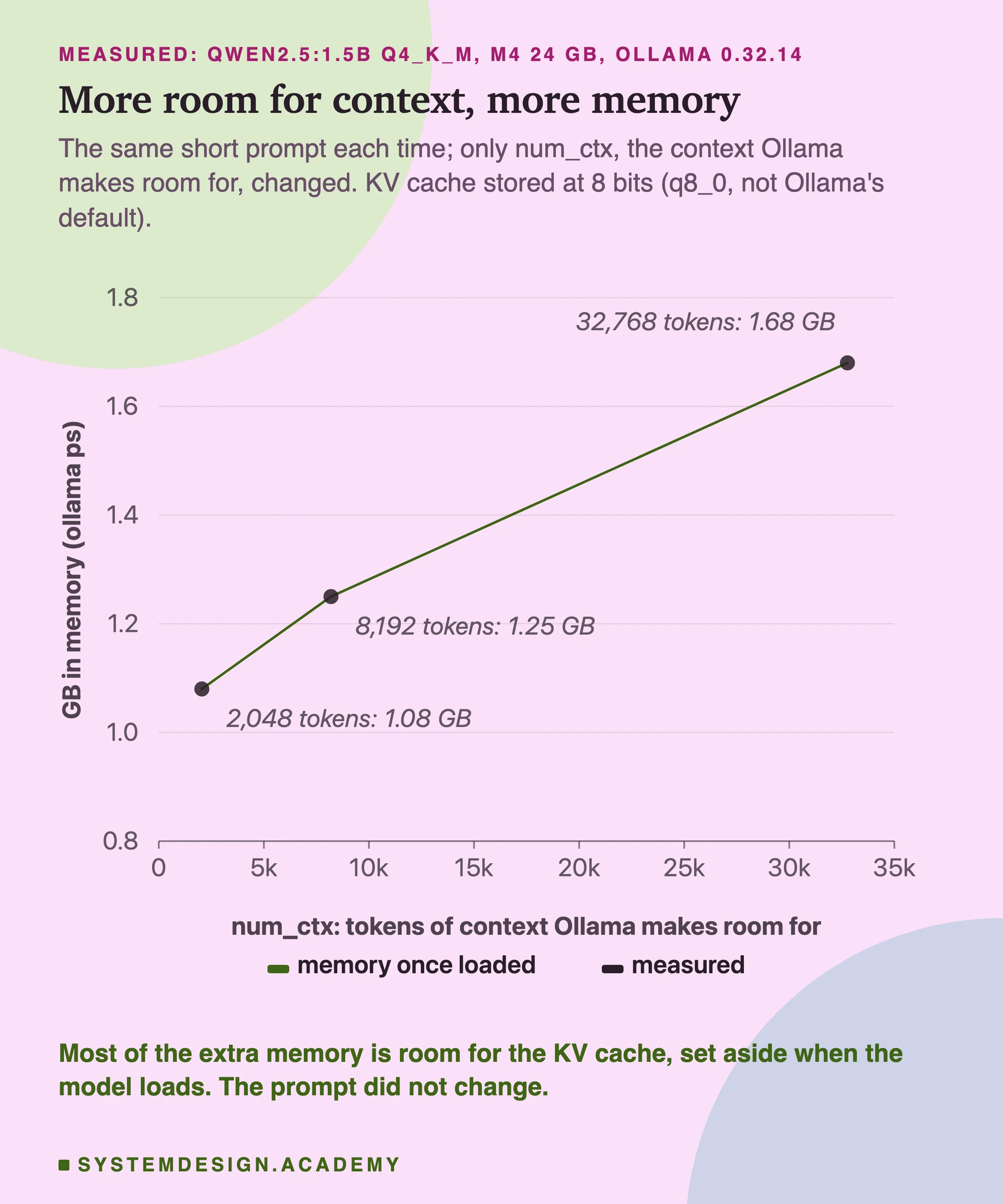
Ollama sets aside room for the KV cache when it loads the model. The size follows the context length you allow. Your prompt does not have to be long.
We used the same short prompt each time. qwen2.5:1.5b took 1.08 GB at a 2,048-token context, 1.25 GB at 8,192 and 1.68 GB at 32,768.
You can work most of that out. The model is a stack of 28 layers, steps that each token passes through in turn. In every layer, each token keeps a short list of keys and a short list of values. This model keeps them in 2 groups per layer, and each list holds 128 numbers. That is 2 (keys and values) × 28 layers × 2 groups × 128 = 14,336 numbers for each token. This Mac stores them as q8_0 (an optional Ollama setting, OLLAMA_KV_CACHE_TYPE=q8_0). That is 8 bits per number, plus one small shared scale for every 32 numbers, about 8.5 bits each. So each token costs about 14,336 × 8.5 ÷ 8 bytes, about 15 KB. 30,720 extra tokens × 15 KB is about 0.47 GB. Memory actually grew 0.60 GB; the rest is other working memory, which we did not break down.
Ollama's default stores the cache at 16 bits, which its documentation says takes about twice the memory of q8_0.
What we measured: an Apple M4 MacBook Air with 24 GB of memory, macOS 15.6, Ollama 0.32.14, with OLLAMA_FLASH_ATTENTION=1 (flash attention, a way of computing attention that needs less memory, which Ollama needs on to store the KV cache in fewer bits) and OLLAMA_KV_CACHE_TYPE=q8_0 set on this machine. qwen2.5:1.5b (Q4_K_M) memory in ollama ps: num_ctx 2,048 = 1.08 GB, 8,192 = 1.25 GB, 32,768 = 1.68 GB.
Memory grows with the context you allowOnly the context setting changed, not the prompt. Most of the extra memory is room for the KV cache, which Ollama reserves when it loads the model.
The fastest way to try this is Ollama. The full install guide, for macOS, Windows and Linux, is on its own page.
How do I run an LLM locally?
Install Ollama from ollama.com/download. Our free setup page walks through it for each operating system and shows how to check it works.
Then, in a terminal, download a small model with ollama pull qwen2.5:1.5b. Ask it something with ollama run qwen2.5:1.5b followed by your question in quotes. The first download is about 1 GB.
ollama ps shows what is loaded, how much memory it uses and whether it is on the GPU. ollama rm followed by a model name deletes a model you no longer need.
Send an HTTP request to Ollama's API at http://localhost:11434/api. This example uses only Python's standard library. It calls qwen2.5:3b, the main model of our course labs. It also works out the writing speed. Ollama returns eval_count, the tokens written, and eval_duration, the time spent in nanoseconds.
import json
import urllib.request

body = {"model": "qwen2.5:3b", "prompt": "Name one use of a cache, in five words.",
        "stream": False, "options": {"temperature": 0}}
req = urllib.request.Request("http://localhost:11434/api/generate", data=json.dumps(body).encode(),
                             headers={"Content-Type": "application/json"})
reply = json.loads(urllib.request.urlopen(req).read())
print(reply["response"])
print(reply["eval_count"] / (reply["eval_duration"] / 1e9), "tokens per second")
Run on the test Mac with Ollama 0.32.14 (scripts/labs/guides/local_llm_snippet.py).
Can I use the OpenAI library with a local model?
Yes. All four tools offer an OpenAI-style API, so code written for OpenAI can point at your machine instead. Ollama's documentation says it supports "a subset of the OpenAI API", at http://localhost:11434/v1.
Change two things: the base URL, and the model name. The library insists on an API key, so pass any text; Ollama ignores it.
The same idea works for LM Studio (its examples use http://localhost:1234/v1), llama-server (port 8080) and vLLM (port 8000). Not every OpenAI feature is supported, so test the ones you use.
from openai import OpenAI

client = OpenAI(base_url="http://localhost:11434/v1", api_key="ollama")  # the key is required but ignored
chat = client.chat.completions.create(
    model="qwen2.5:3b",
    messages=[{"role": "user", "content": "Name one use of a cache, in five words."}],
    temperature=0,
)
print(chat.choices[0].message.content)
Run on the test Mac with the openai Python package (pip install openai).
7. Other common questions
Short answers to what people ask next.
Can I run a local LLM without a GPU?
Yes, with Ollama, LM Studio or llama.cpp. Small models run on the processor alone, just more slowly than on a graphics card. Start with a model of 1 to 3 billion weights at 4 bits.
vLLM is mainly built for GPUs. It has a CPU version, but that is not what it is designed around.
Are these tools free?
Yes, all four cost nothing. Ollama and llama.cpp are open source under the MIT license, and vLLM under Apache 2.0. LM Studio is free, including at work, but closed source.
The models have their own licenses, separate from the tool. Check the license of each model before you use it in a product.
Which model should I start with?
Pick by memory first. With 8 GB of memory, try a model of 1 to 3 billion weights at 4 bits. With 16 GB or more, a 7 billion weight model at 4 bits fits, as the measurements above show.
Then test two or three models on your real task with the same prompts. A model that tops a public leaderboard can still be the wrong one for your job.
Yes, but plan for more than one user. Ollama answers one request per model at a time by default. Several users will wait in line, and each waits for the others' replies to be written.
For a shared service, run a serving engine such as vLLM on a GPU server. Keep the model loaded, and measure the delay your users see. Our course covers where that delay comes from and how teams cut it.
Every answer on this page comes from our AI Engineering course: 201 lessons on RAG, evals, agents, serving, security and MLOps. Many of them are built around a real experiment. You learn why the answer is right, which is what an interviewer checks with the second question. 10 lessons are free to read, with no card needed.